
HOTCOIN Logo
Buy Crypto
Market
Trade
Futures
Earn
Rewards Hub
More
Web3 Wallet
Service Contacts

[email protected]

Product Feedback

[email protected]

Business Cooperation

[email protected]

Legal Contacts

[email protected]

Contact us
Service Contacts

[email protected]

Product Feedback

[email protected]

Business Cooperation

[email protected]

Legal Contacts

[email protected]

About us
Platform Introduction
Announcement Center
System Status
User Agreement
Privacy Policy
Legal Description
Products
Futures
Spot
Copy Trading
Margin
Earn
Trade Crypto via P2P
Buy Crypto with Card
Web3 Wallet
Service
Live Streaming
Hotcoin Elite Picks
Rewards Center
Friend Referral
VIP Benefits
Download
P2P Merchant Application
Support
Hotcoin Academy
Help Center
API Docs
Fee Rate
Crypto Info
Listing Application
Online Service
User Feedback
Official Verification
Trading
BTC USDC
ETH USDC
BTC USDT
ETH USDT
PI USDT
SOL USDT
XRP USDT
©2017-2026
Help Center
/Derivatives/Futures Trading/Getting Started/
How to Trade Futures
Help Center
/Derivatives/Futures Trading/Getting Started/
How to Trade Futures

How to Trade Futures

Hotcoin
Share


Before you start trading futures, transfer funds to your Futures Account first. Once the transfer is complete, you can start trading.

👉 How to Transfer Funds


The following guide uses Perpetual Futures as an example to walk you through the basic futures trading process.


1. Open the Futures Trading Page and Place Your Order


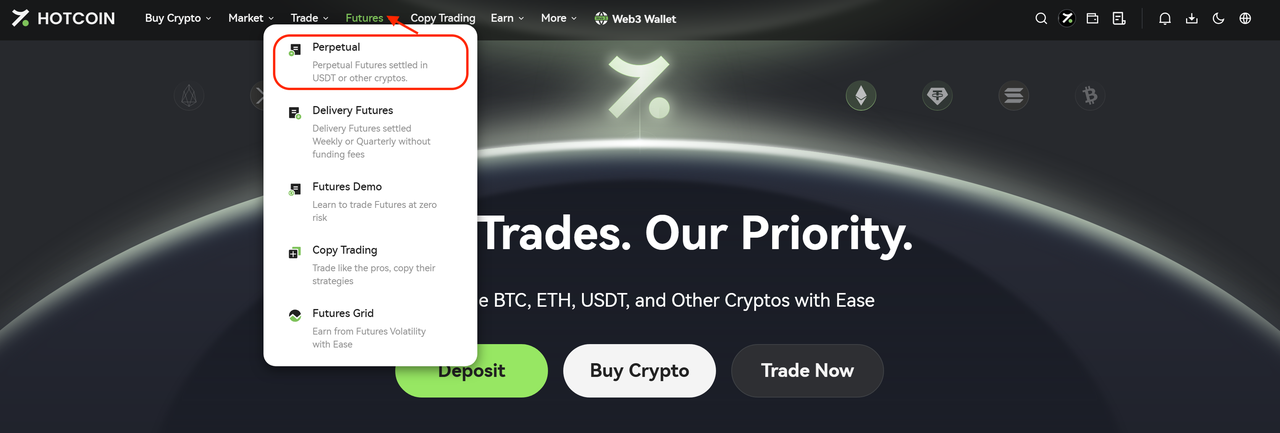
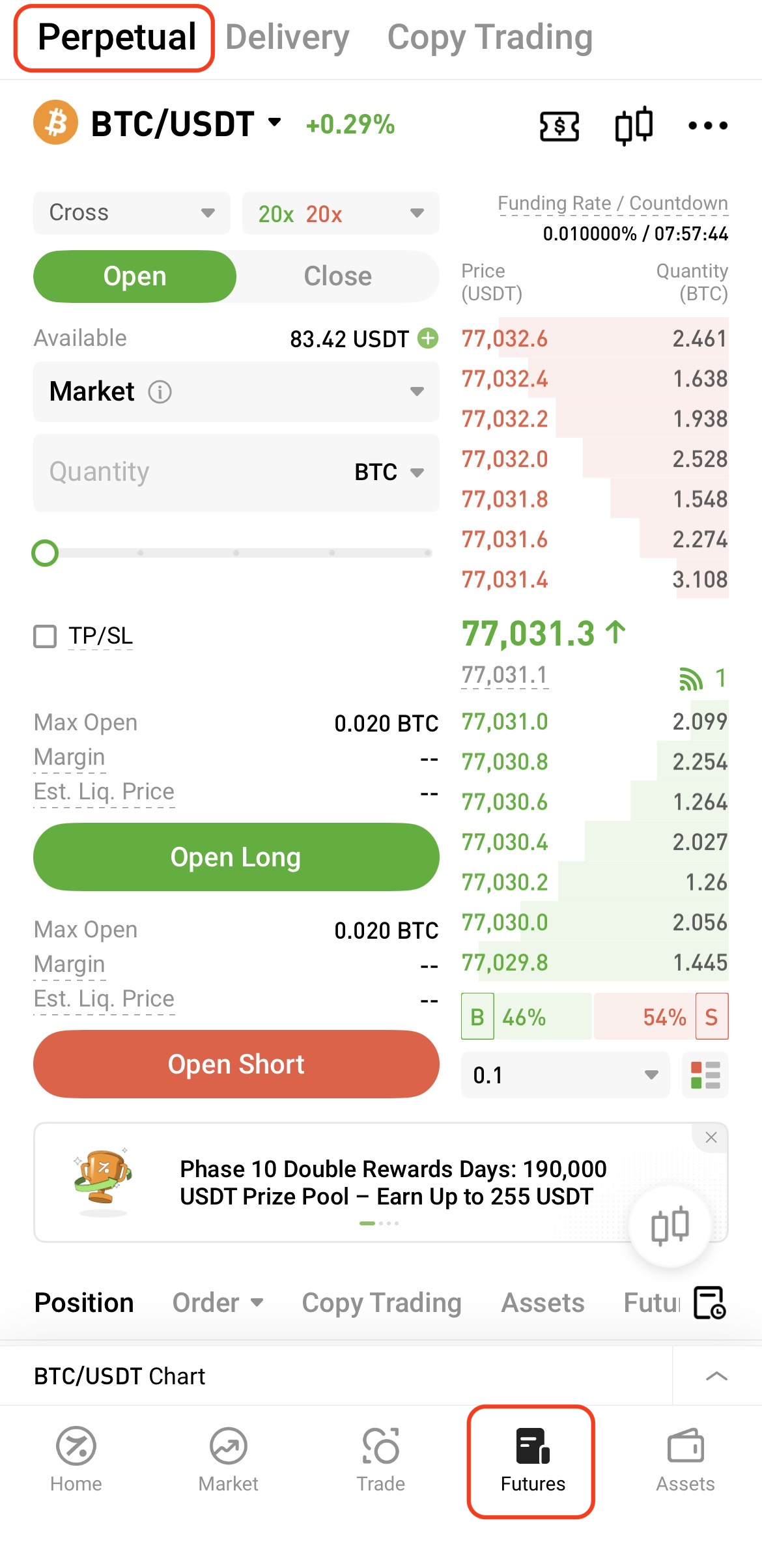
To access the trading page:


Web: Go to Futures → Perpetual Futures from the navigation bar


App: Tap Futures at the bottom of the home screen


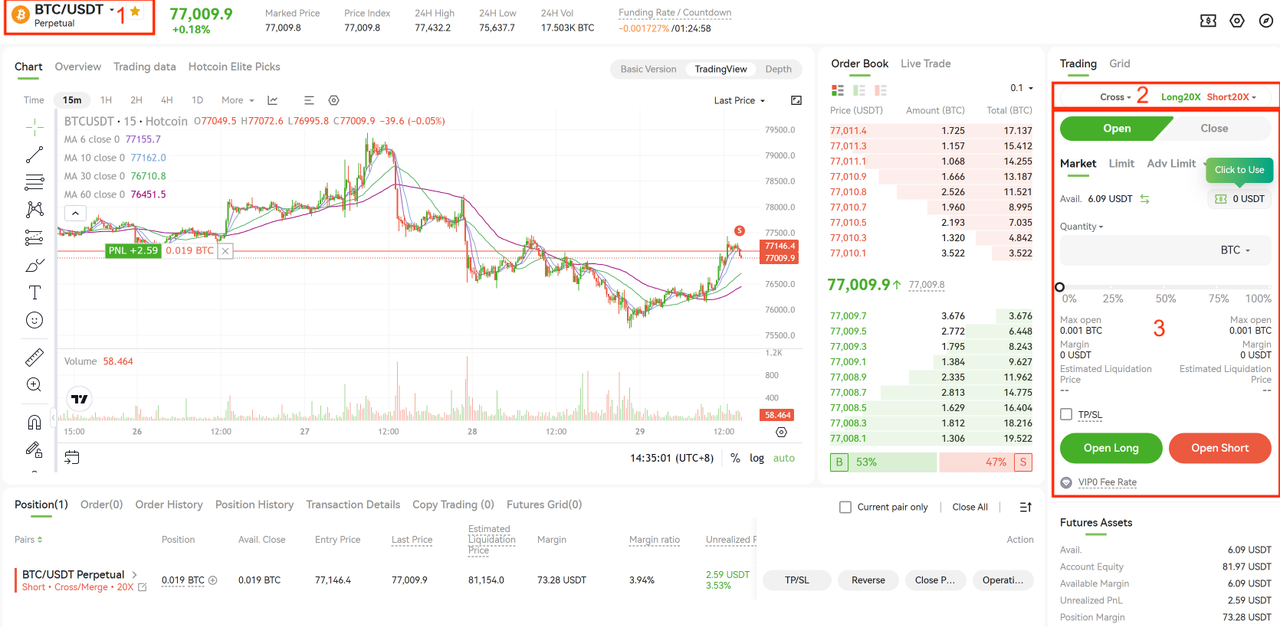
Follow these steps to place an order:

  • In section “1”, select the futures trading pair you want to trade
  • In section “2”, choose the trading mode and set the leverage
  • In section “3”, select the order type and enter the order quantity, then click Open Long or Open Short to place the order

After completing the above steps, the system will automatically display details such as the required margin and estimated liquidation price.


2. View Positions and Open Orders


Once the order is placed, you can view your current positions and open orders at the bottom of the trading page.



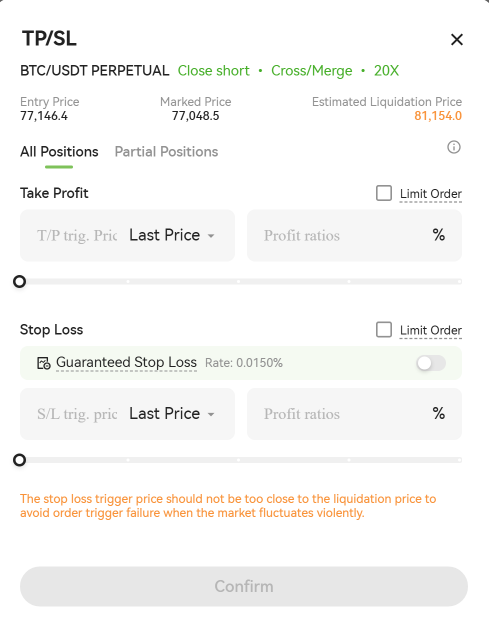
3. Set TP/SL


To set Take Profit or Stop Loss, tap the TP/SL button on the right side of the position panel.

You can configure TP/SL conditions based on the trigger price or profit ratio. Once your preset conditions are met, the system will automatically place a closing order.


4. Close Positions


You can close your positions in full or partially.


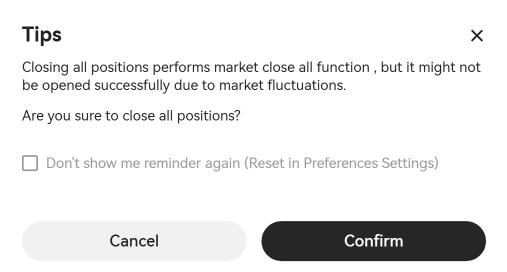
One-Click Close

Click One-Click Close to close all current positions at the market price.


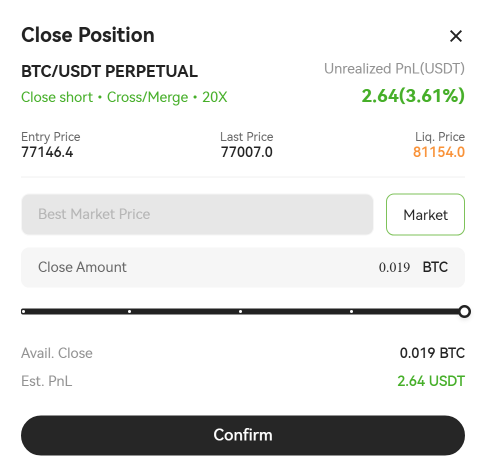
Partial Close

Click Close Position to partially close a position using either a market or limit order.


By following the steps above, you can complete a basic futures trade. Before getting started, make sure you understand the trading rules, leverage mechanisms, and related risks. Always manage your positions according to your own risk tolerance.


Visit the Help Center for more futures trading guides and tutorials.

Quick Start Guide
Cryptocurrency Basics
Beginner’s Guide
App Guide
Start Trading
VIP Program
Rewards Center
Account Security & KYC
Asset Security
Security Settings
KYC Verification
Deposit & Withdrawal
Deposit
Withdrawal
P2P
P2P Trading Guide
P2P Merchant Management
P2P Rules & Agreements
Friend Referral
Spot Trading
Spot Trading
Pre-market trading
Derivatives
Advanced Trading
Grid Trading
Trend Trading
Fundamentals of Technical Analysis (Candlesticks / MACD / RSI)
Prediction Market
Futures Grid
Futures Trading
Getting Started
Contract Type
Trading Mechanics
Risk Management
FAQ
Copy Trading
Getting Started
Follower Guide
Lead Trader Guide
Terms of Service
Web3 Wallet
Getting Started
Swap
Hotcoin Card
Hotcoin Earn
Alpha
Startup
Platform Support
Agreements & Rules