HOTCOIN Logo
Buy Crypto
Market
Trade
Futures
Earn
Rewards Hub
More
Web3 Wallet
Service Contacts

[email protected]

Product Feedback

[email protected]

Business Cooperation

[email protected]

Legal Contacts

[email protected]

Contact us
Service Contacts

[email protected]

Product Feedback

[email protected]

Business Cooperation

[email protected]

Legal Contacts

[email protected]

About us
Platform Introduction
Announcement Center
System Status
User Agreement
Privacy Policy
Legal Description
Products
Futures
Spot
Copy Trading
Margin
Earn
Trade Crypto via P2P
Buy Crypto with Card
Web3 Wallet
Service
Live Streaming
Hotcoin Elite Picks
Rewards Center
Friend Referral
VIP Benefits
Download
P2P Merchant Application
Support
Hotcoin Academy
Help Center
API Docs
Fee Rate
Crypto Info
Listing Application
Online Service
User Feedback
Official Verification
Trading
BTC USDC
ETH USDC
BTC USDT
ETH USDT
PI USDT
SOL USDT
XRP USDT
©2017-2026
Help Center
/P2P/P2P Trading Guide/
P2P Orders and Account Assets
Help Center
/P2P/P2P Trading Guide/
P2P Orders and Account Assets

P2P Orders and Account Assets

Hotcoin
Share


This article explains how to view your P2P orders, where your purchased assets are stored after an order is completed, and why the fiat-equivalent value of your assets may change.


1. How can I view my P2P order history?


You can access your P2P transaction history via the App or Web.


App:

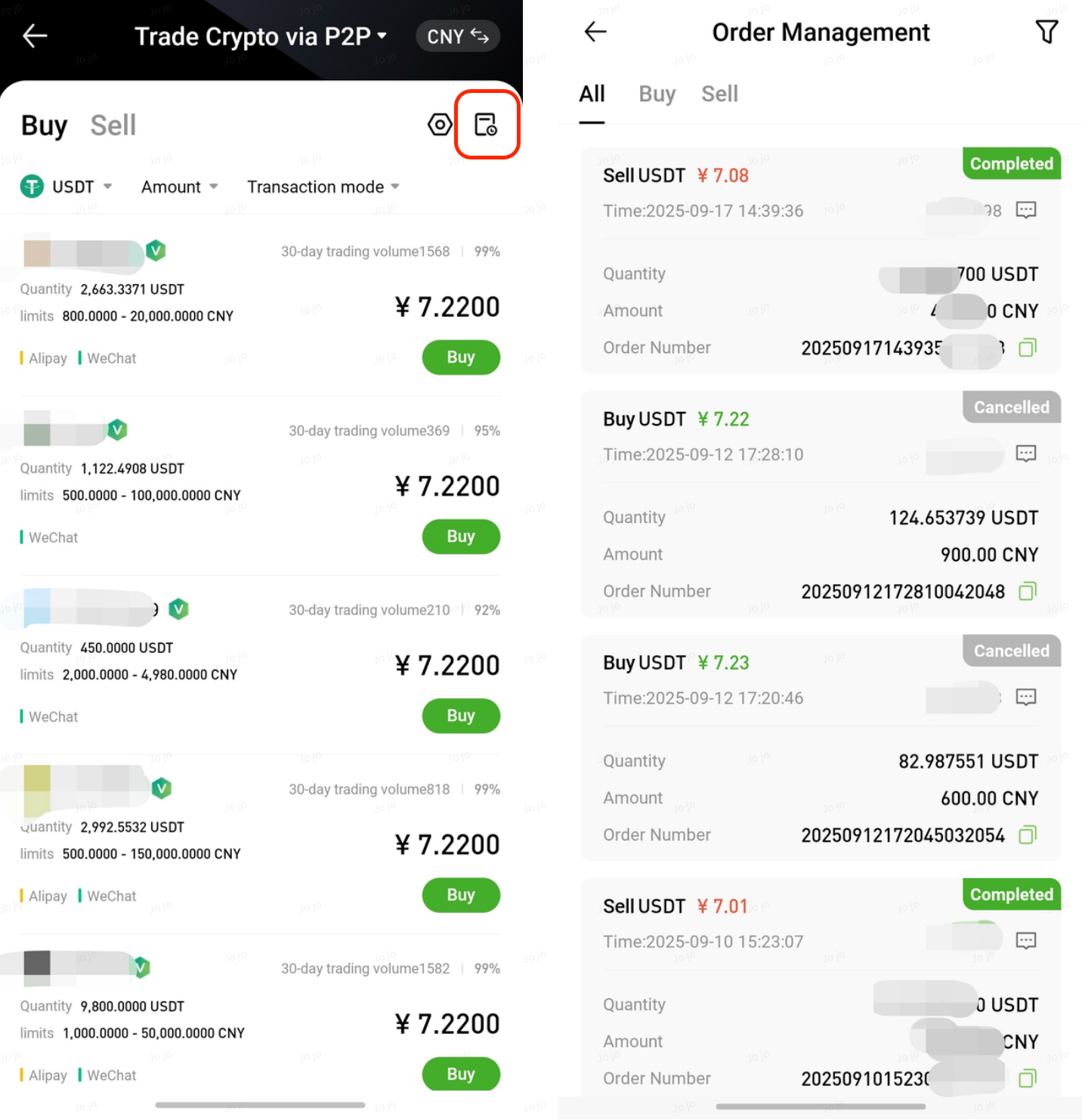
Go to P2P Trading and tap Orders in the upper-right corner.


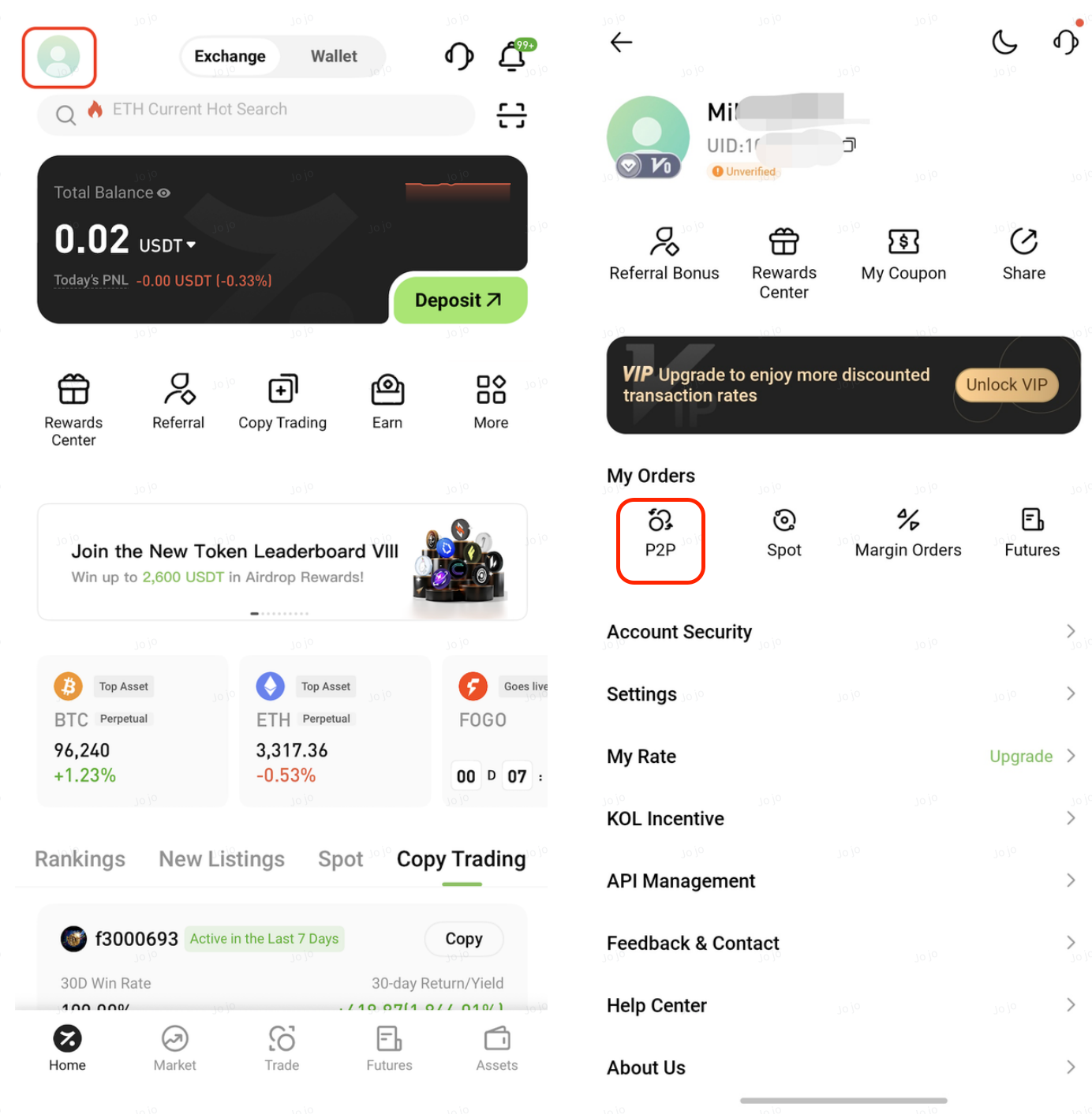
Or tap the profile icon in the upper-left corner of the Hotcoin App homepage, go to Personal Center, and tap P2P under My Orders to view your order history.


Web:

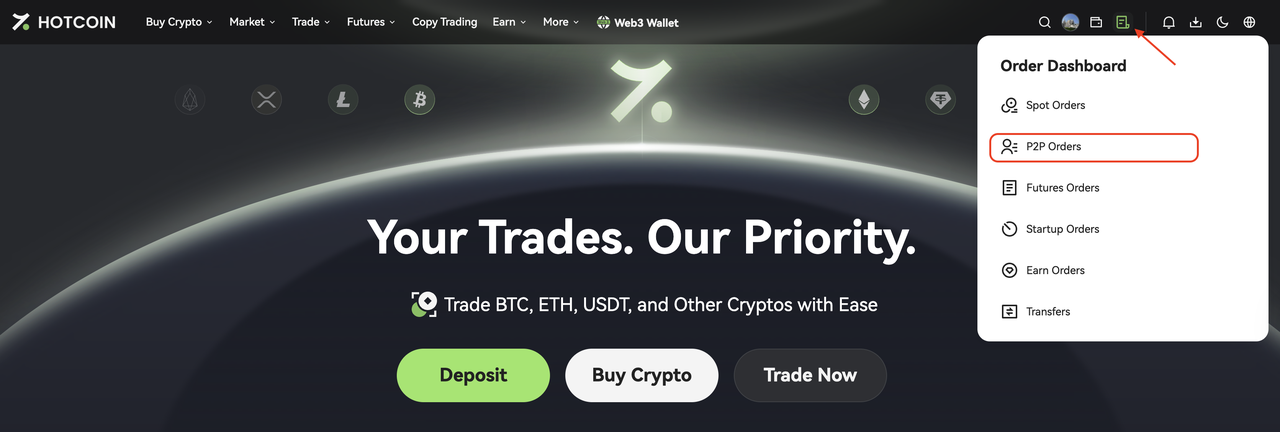
On the Hotcoin website, click Order Dashboard in the upper-right corner and select P2P Orders from the dropdown menu.


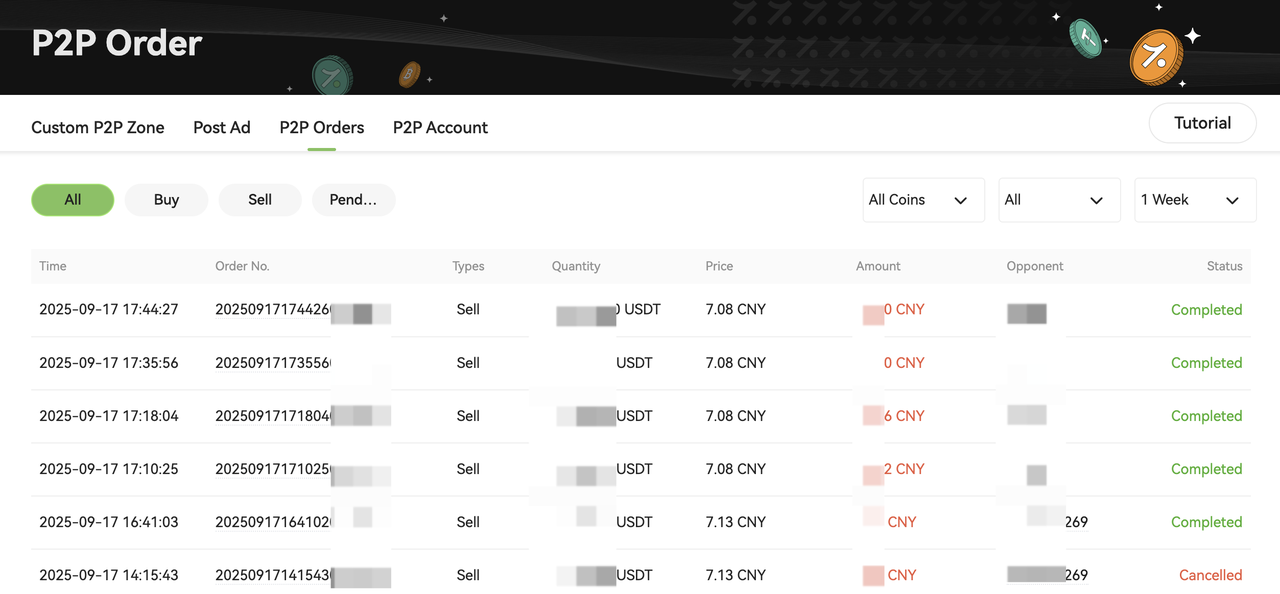
Or go to the P2P Trading page and click P2P Orders to view your order history.


2. Where are my assets after the order is completed?


Purchased assets are automatically credited to your P2P Account.


To view your balance:

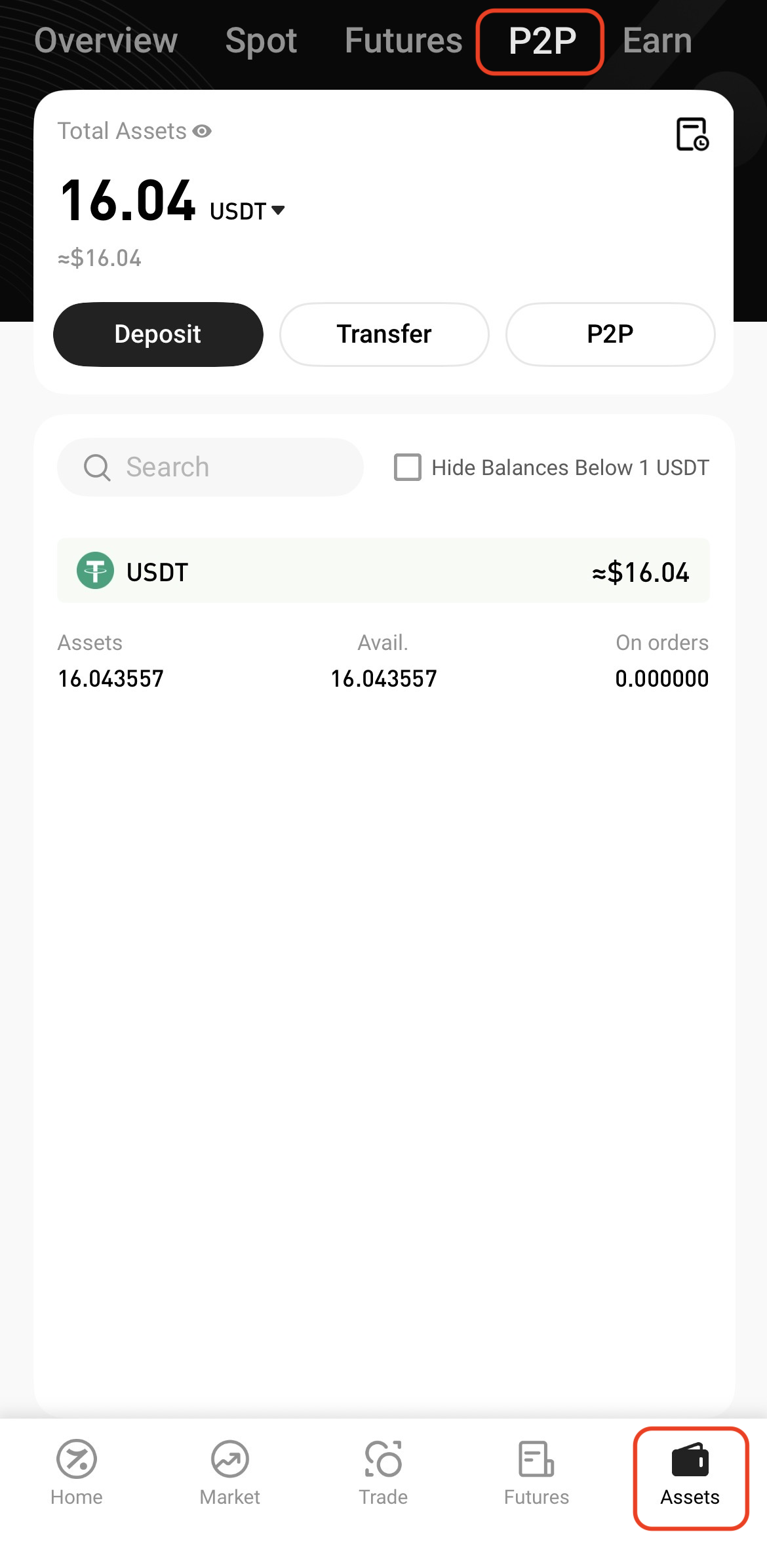
App: Tap Assets (bottom menu) and select P2P.


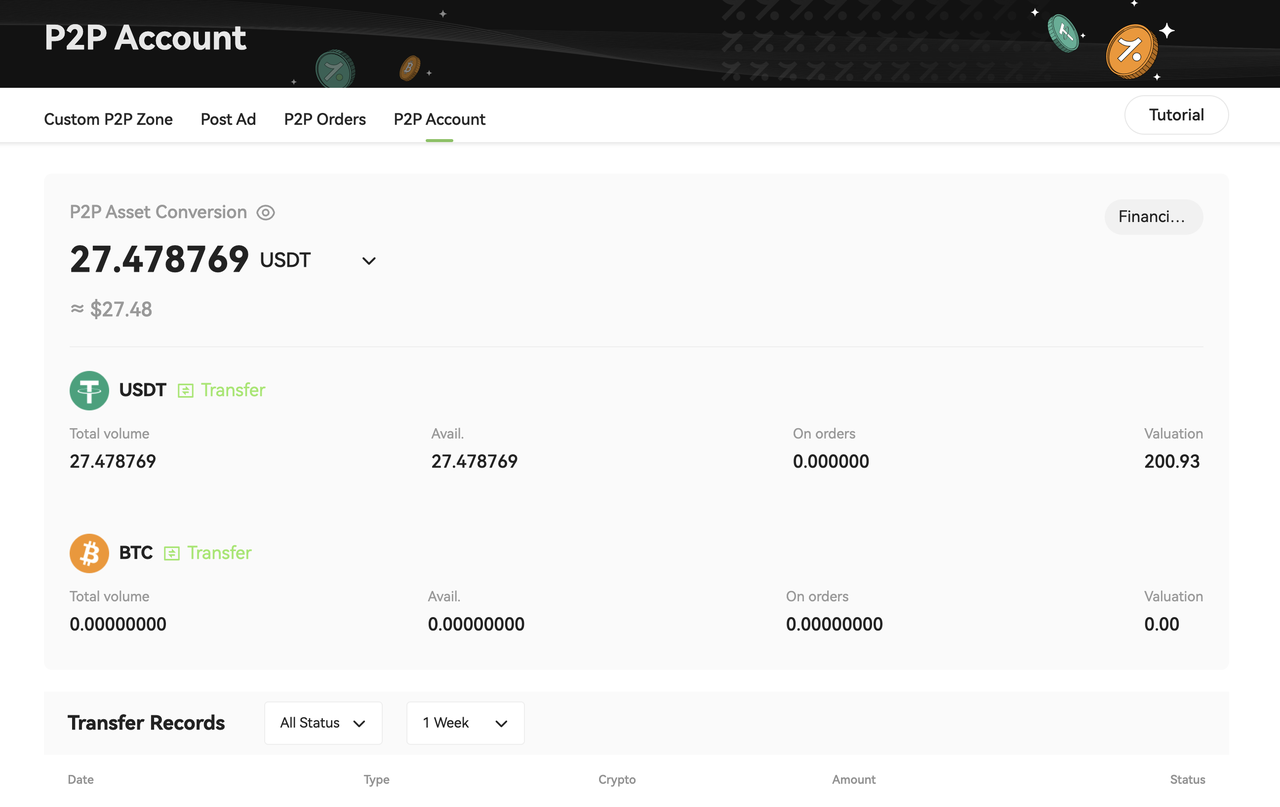
Web: Go to the P2P Trading page and click P2P Account.


Note: To start trading, you need to transfer funds from your P2P Account to the appropriate trading account (e.g., Spot, Futures, etc.).

For more details, refer to What Is Funds Transfer.


3. Why is my fiat-equivalent balance lower than expected?


The fiat value displayed in your account is calculated based on the current reference price, rather than the price at which you purchased the asset.


Example

  • You bought 1,000 USDT at CNY 6.50 (Total: CNY 6,500).
  • If the current reference price drops to CNY 6.48, the displayed fiat value will be approximately CNY 6,480.

Please note

  • The fiat value is for reference only.
  • The quantity of digital assets in your account does not change.
  • Your actual balance is determined by the amount of USDT held.
  • The fiat-equivalent value may fluctuate with market prices.


Related Articles

Hotcoin P2P Trading FAQs

Trading Safety and Dispute Handling

How to Buy Crypto via Hotcoin P2P on the Web

How to Buy Crypto via Hotcoin P2P on the App

How to Sell Crypto via Hotcoin P2P on the Web

How to Sell Crypto via Hotcoin P2P on the App

Quick Start Guide
Cryptocurrency Basics
Beginner’s Guide
App Guide
Start Trading
VIP Program
Rewards Center
Account Security & KYC
Asset Security
Security Settings
KYC Verification
Deposit & Withdrawal
Deposit
Withdrawal
P2P
P2P Trading Guide
P2P Merchant Management
P2P Rules & Agreements
Friend Referral
Spot Trading
Spot Trading
Pre-market trading
Derivatives
Advanced Trading
Grid Trading
Trend Trading
Fundamentals of Technical Analysis (Candlesticks / MACD / RSI)
Prediction Market
Futures Grid
Futures Trading
Getting Started
Contract Type
Trading Mechanics
Risk Management
FAQ
Copy Trading
Getting Started
Follower Guide
Lead Trader Guide
Terms of Service
Web3 Wallet
Getting Started
Swap
Hotcoin Card
Hotcoin Earn
Alpha
Startup
Platform Support
Agreements & Rules