

Service Contacts
Product Feedback
Business Cooperation
Legal Contacts
About us
Service
Support
©2017-2026
Contents
What is Google Authenticator?
App — Entry to set up Google Authenticator
Web — Entry to set up Google Authenticator
Download Google Authenticator & Complete Binding
What should I do if I lose my phone and Google Authenticator access?
Google Authenticator is a dynamic code tool that works similarly to SMS verification. Once enabled, it generates a time-based verification code every 30 seconds. These codes are used for key operations such as withdrawals, password recovery, security setting updates, and API management.
1. Open the Hotcoin app and log in. Tap the avatar at the top-left corner of the Home screen.
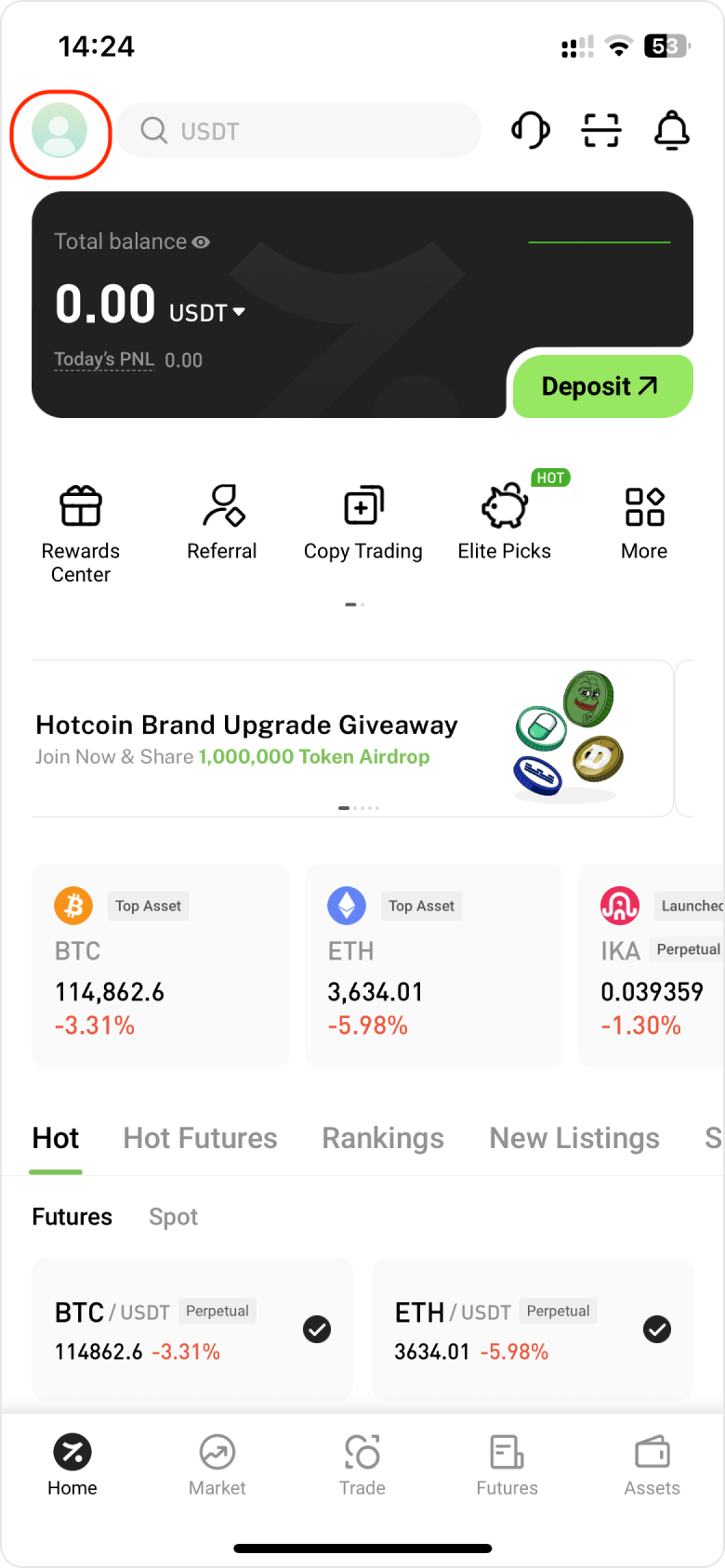
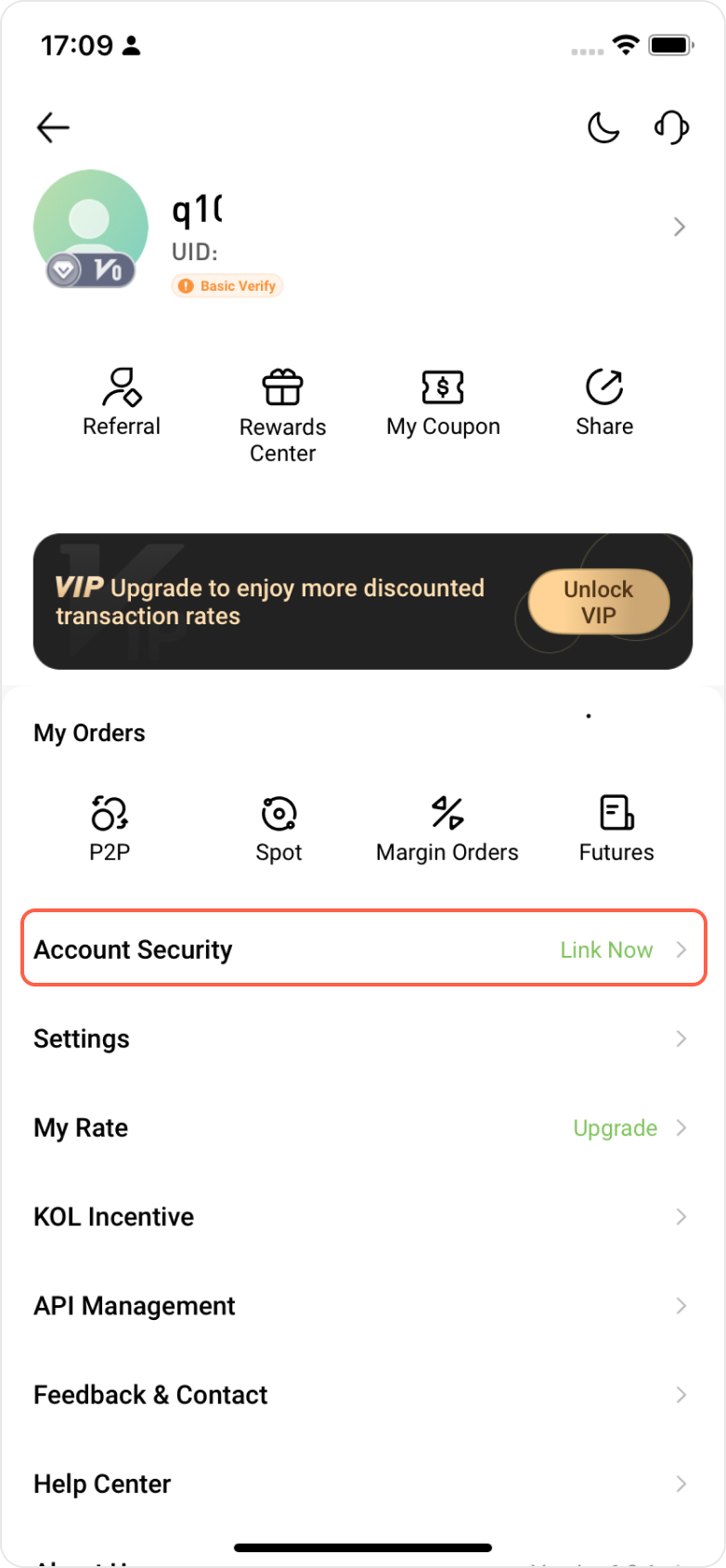
2. Navigate to Personal Center, and choose Account Security.
3. Find the Google Verification option, and start setting up Google Authenticator.
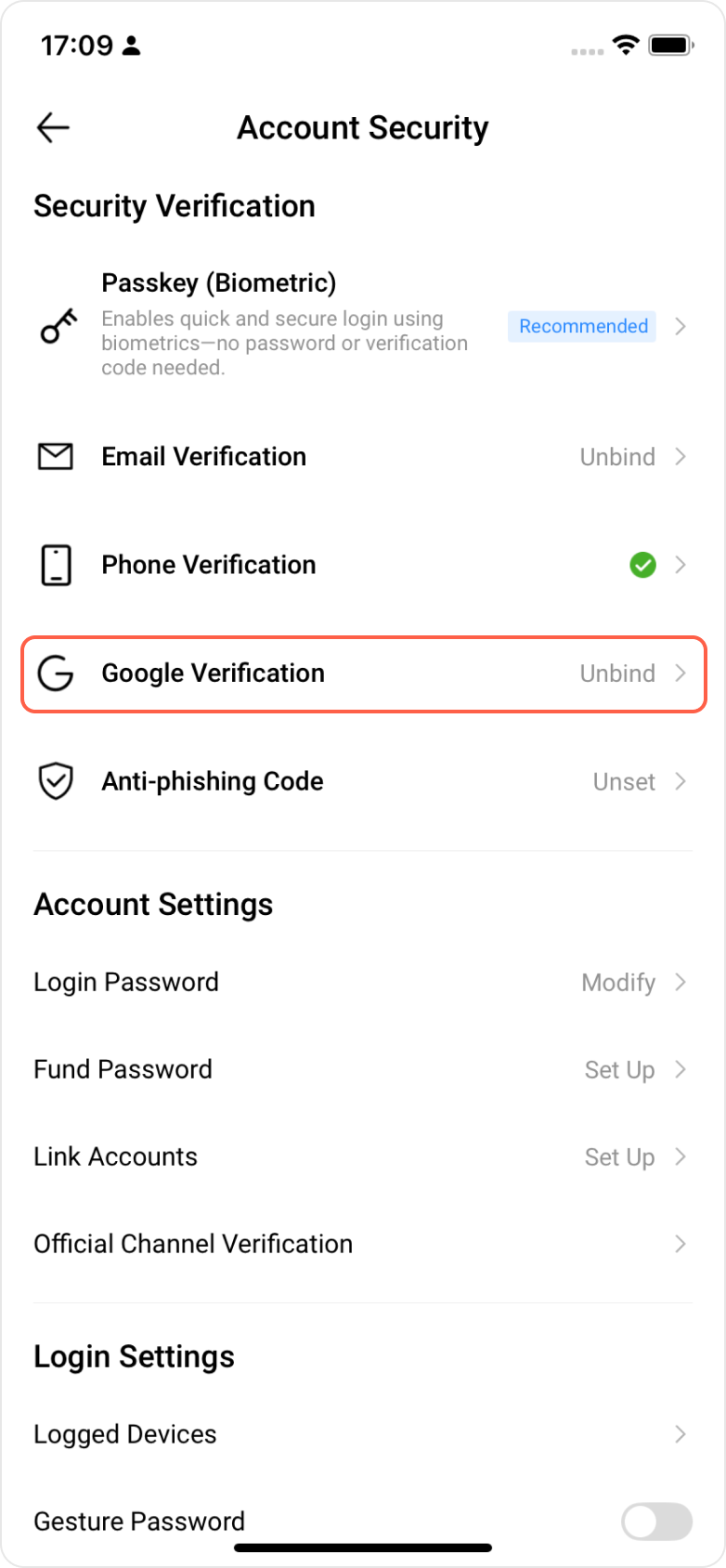
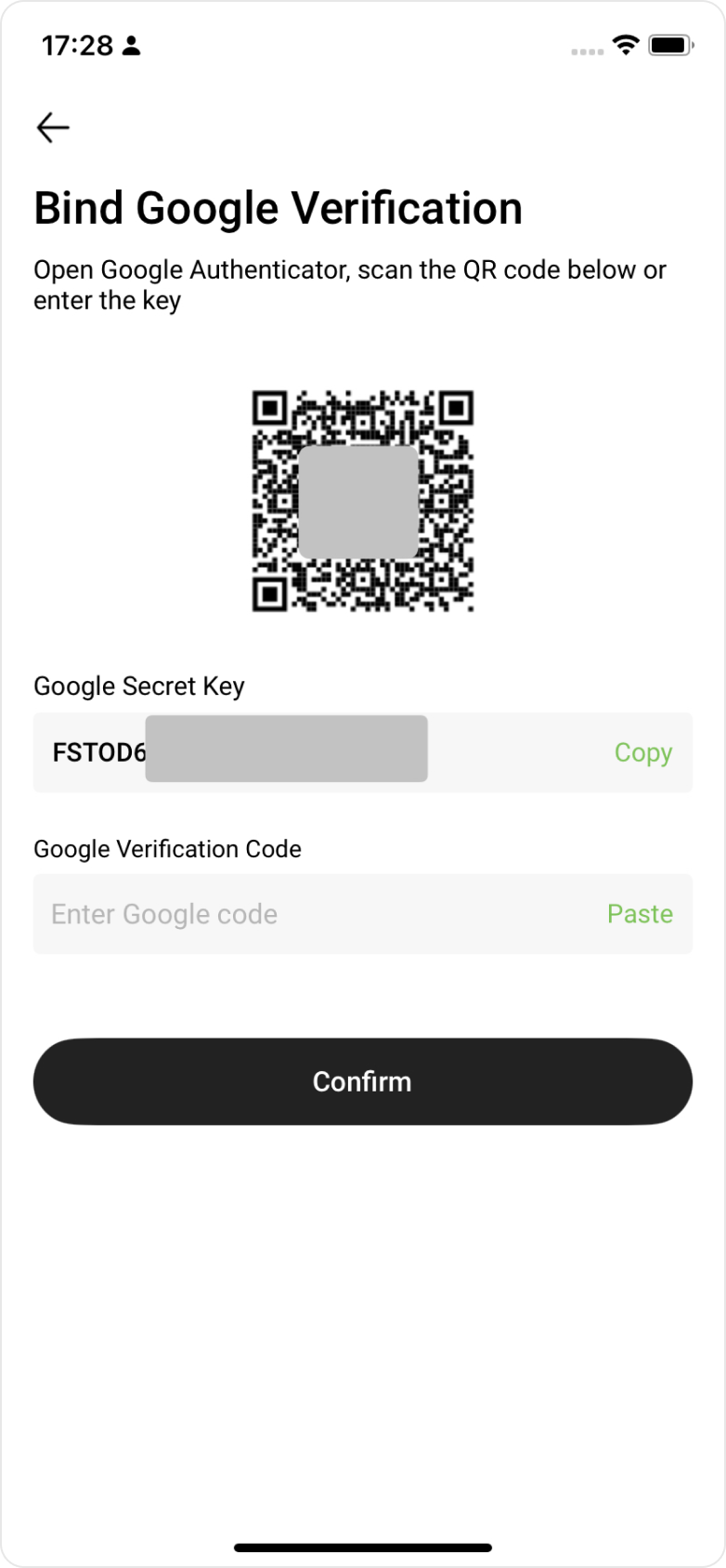
3. On the Bind Google Verification page, you can obtain your Google key and QR code.
4. Open the Google Authenticator app and either scan the QR code or manually enter the key to generate the corresponding Google verification code.
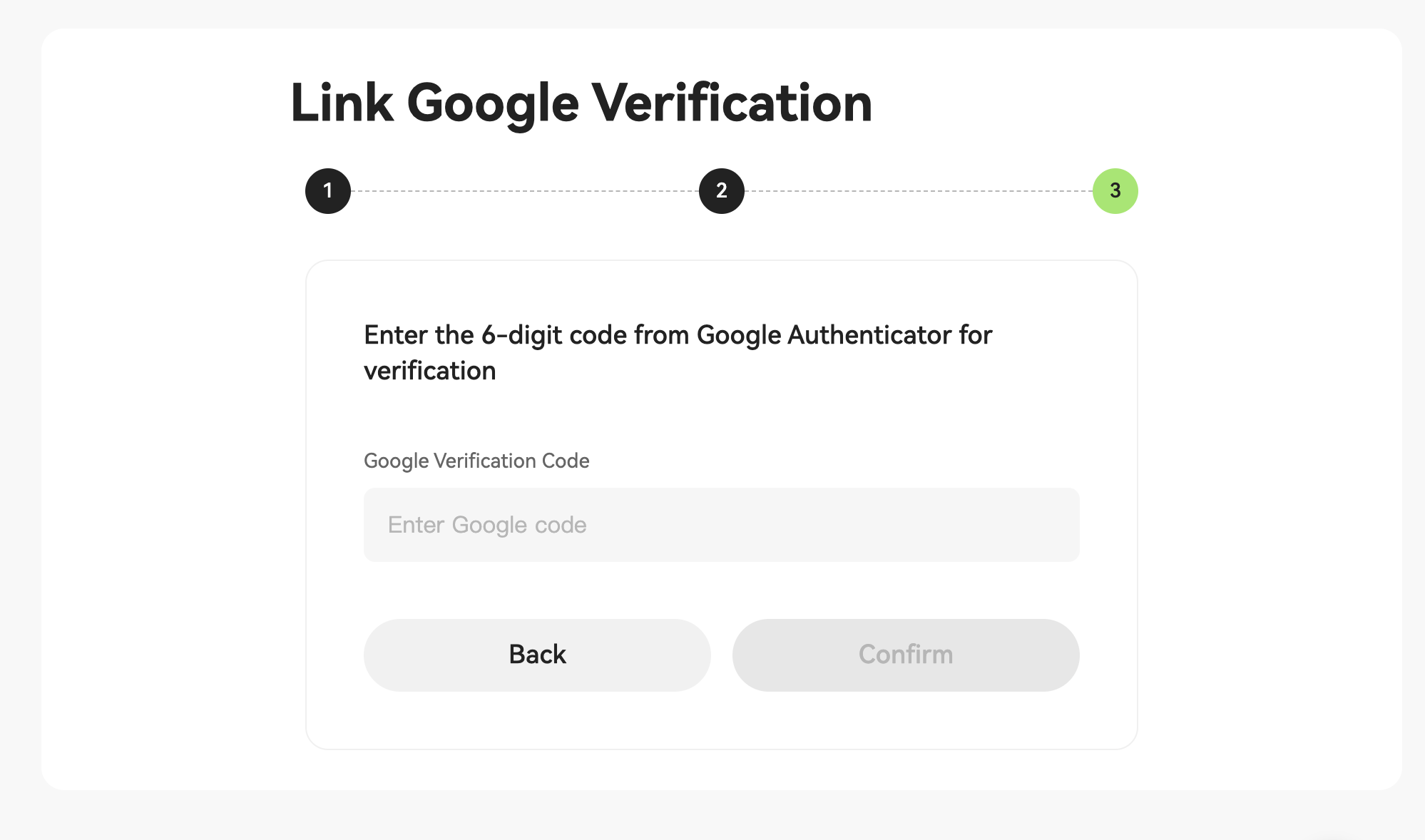
5. Enter the code on the binding page and click Confirm to complete the binding.
1. Go to the Hotcoin official website, click the Log In button in the upper right corner, and log in with your username and password.
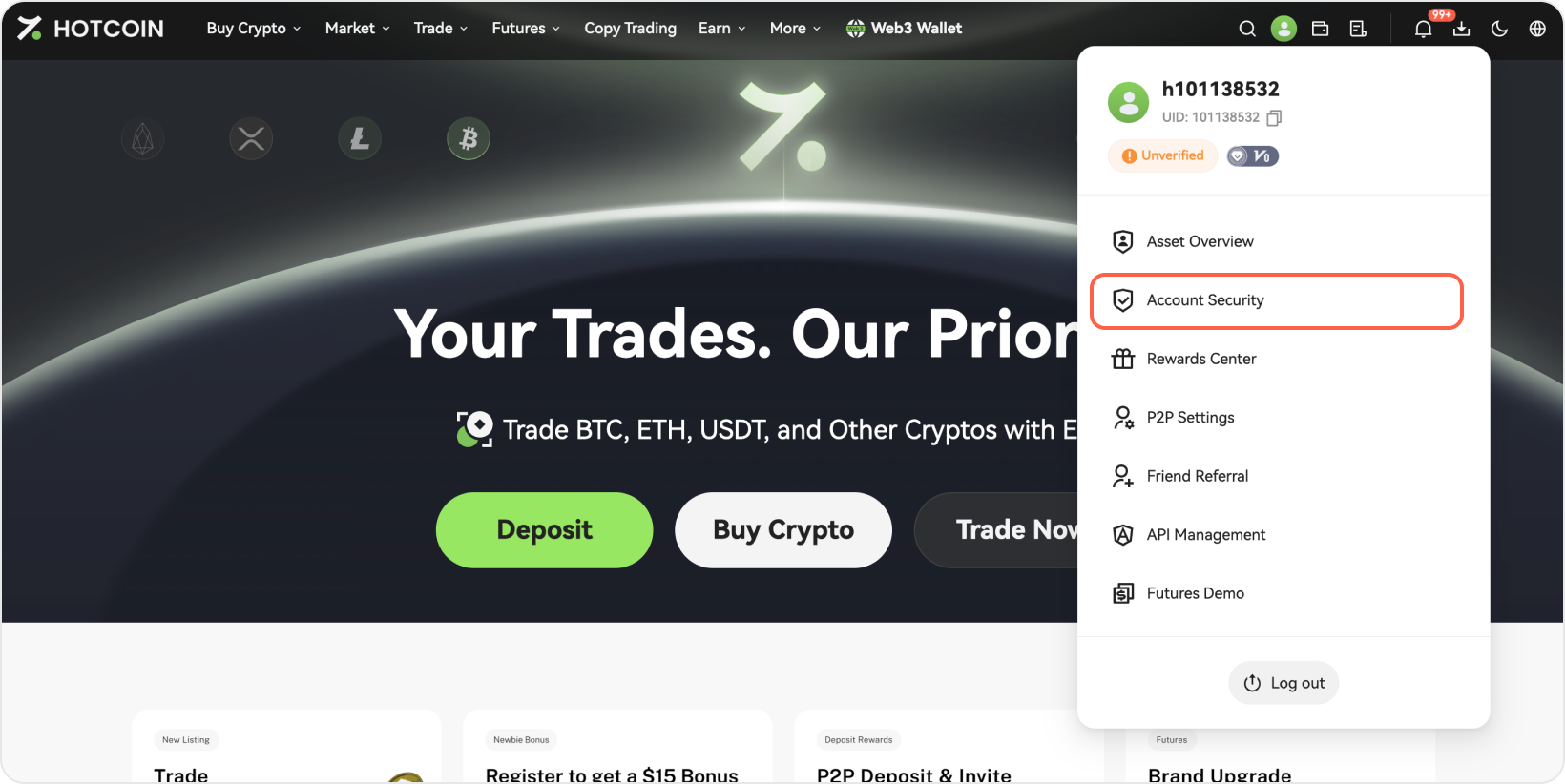
2. Hover your mouse over your username, then click Account Security from the drop-down menu to enter your Hotcoin Security settings.
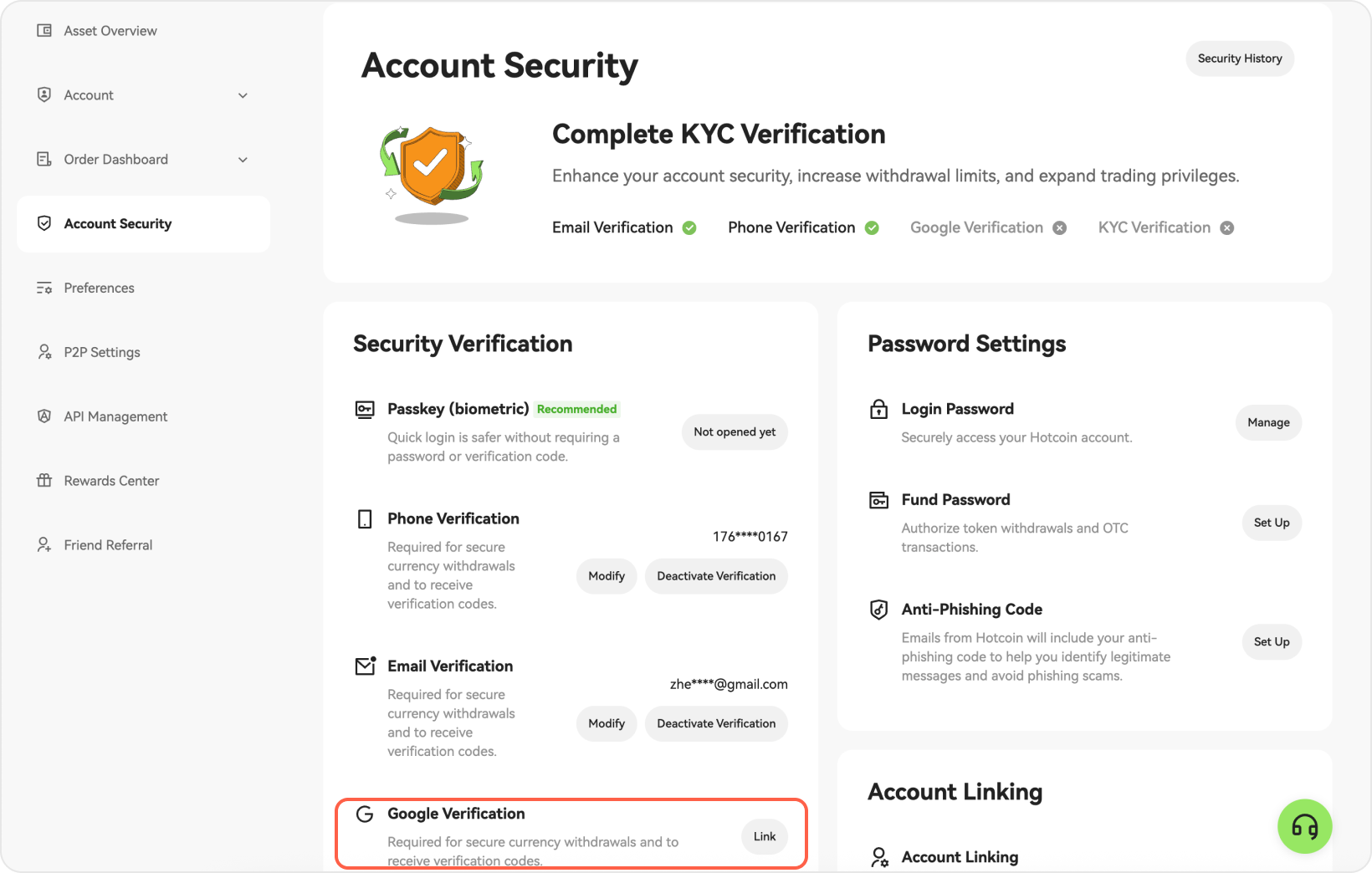
3. On the Account Security page, locate Google Verification, then click Link to begin the setup.
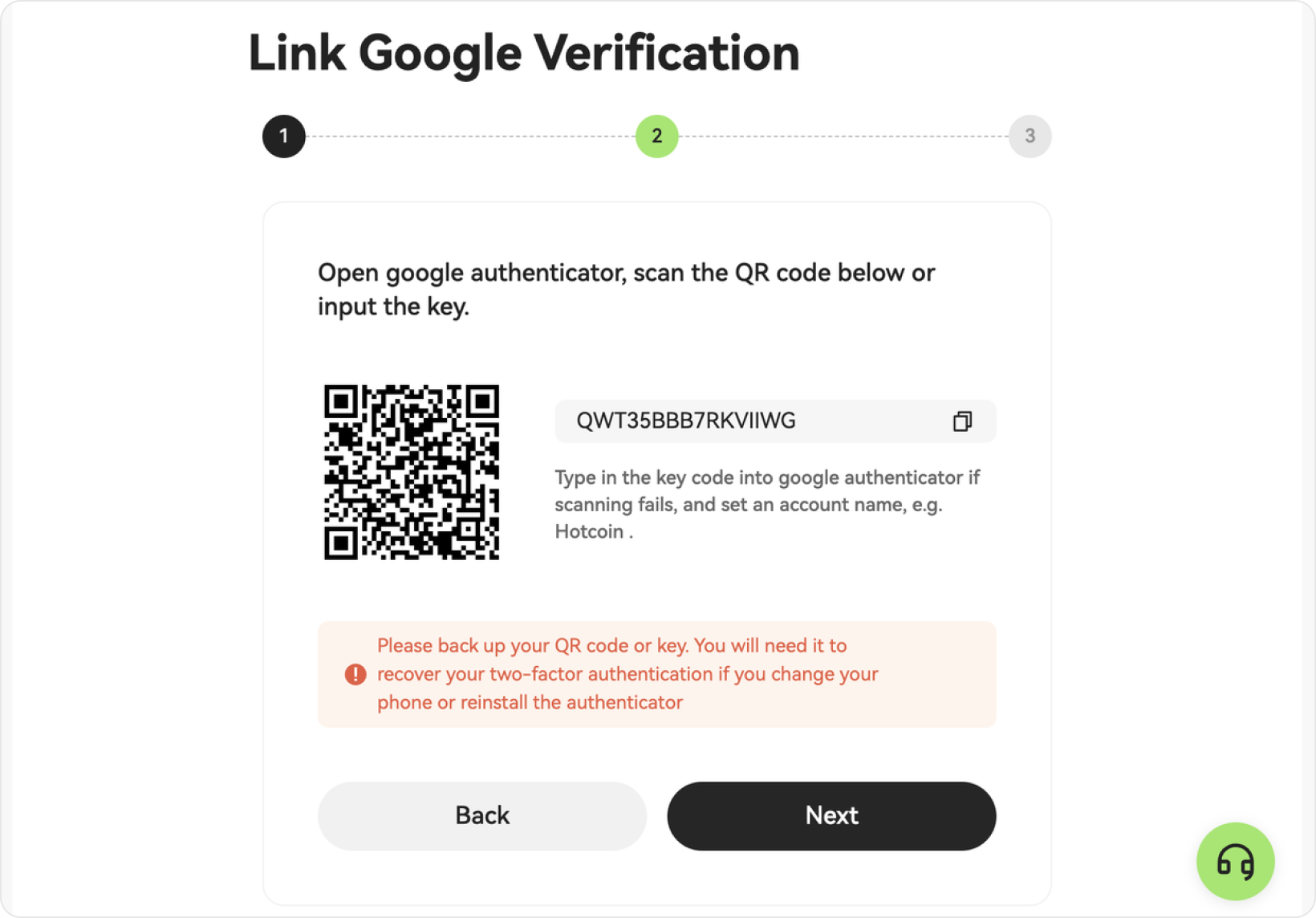
4. Obtain the Google key and QR code needed to bind Google Authenticator.
1. When you reach the verification page, download and install Google Authenticator from the App Store (iOS) or Google Play Store (Android), then open the app to access it.
2. Once you open the Google Authenticator app, tap the button at the bottom of the screen, choose to either scan a QR code or manually enter the setup key.
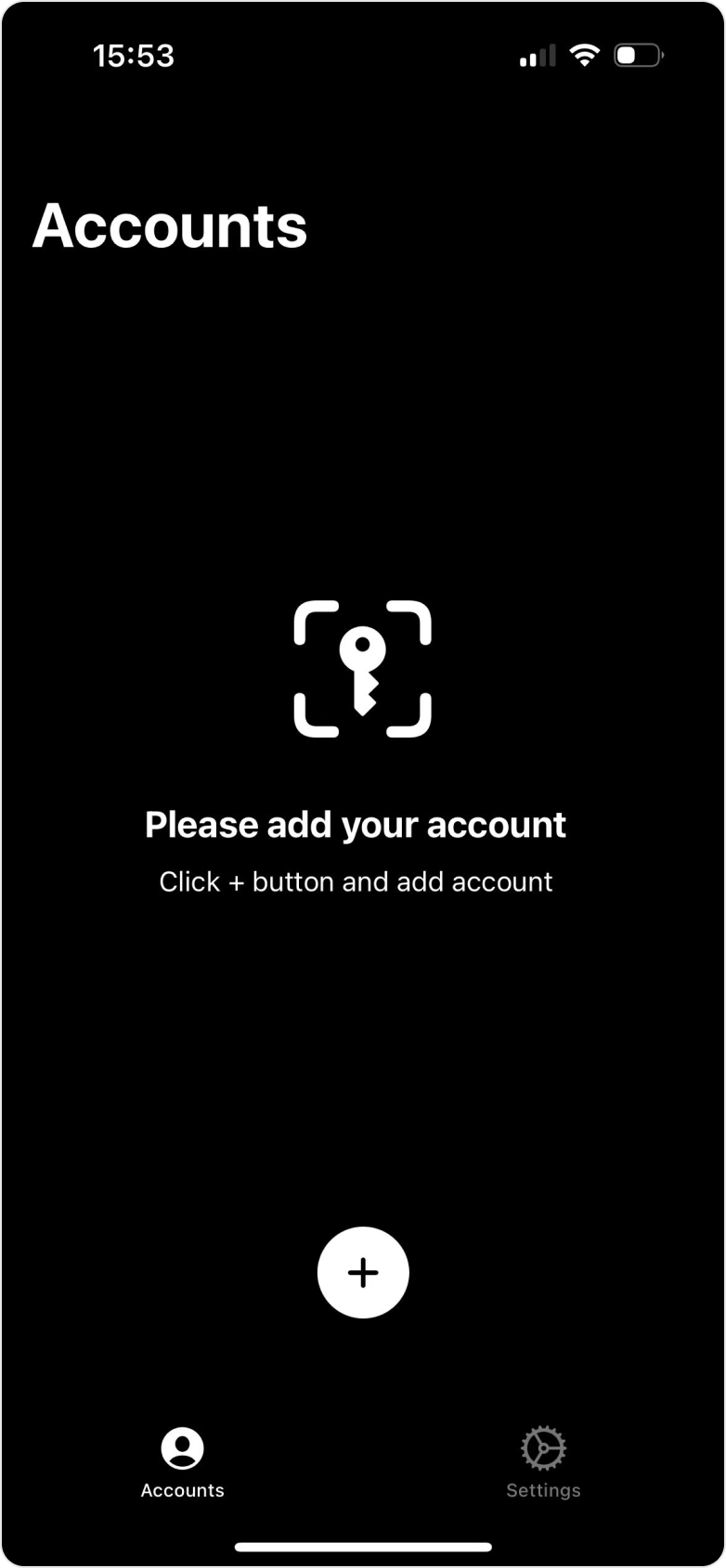
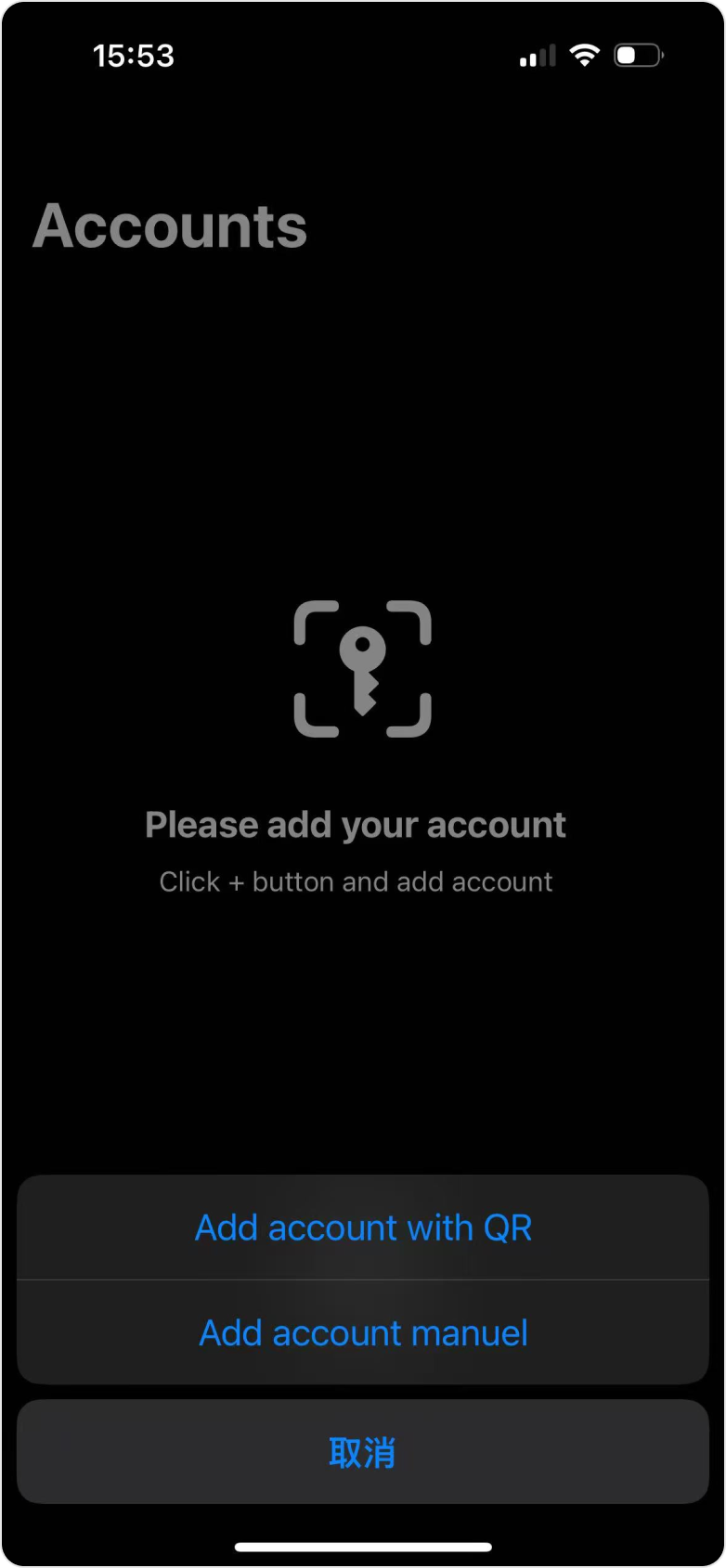
3. Once bound, the app will generate a 6-digit verification code that refreshes every 30 seconds.
4. For any security action on Hotcoin, enter the latest 6-digit code from the Authenticator app to verify.
We strongly recommend saving your key or QR code during Google Authenticator setup. If your phone is lost, you can restore the app on a new device using the backup.
If you haven’t backed up your key or QR code, contact customer support and provide the required information as instructed. Once your request is reviewed and approved, you can rebind Google Authenticator.