
HOTCOIN Logo
Buy Crypto
Market
Trade
Futures
Earn
Rewards Hub
More
Web3 Wallet
Service Contacts

[email protected]

Product Feedback

[email protected]

Business Cooperation

[email protected]

Legal Contacts

[email protected]

Contact us
Service Contacts

[email protected]

Product Feedback

[email protected]

Business Cooperation

[email protected]

Legal Contacts

[email protected]

About us
Platform Introduction
Announcement Center
System Status
User Agreement
Privacy Policy
Legal Description
Products
Futures
Spot
Copy Trading
Margin
Earn
Trade Crypto via P2P
Buy Crypto with Card
Web3 Wallet
Service
Live Streaming
Hotcoin Elite Picks
Rewards Center
Friend Referral
VIP Benefits
Download
P2P Merchant Application
Support
Hotcoin Academy
Help Center
API Docs
Fee Rate
Crypto Info
Listing Application
Online Service
User Feedback
Official Verification
Trading
BTC USDC
ETH USDC
BTC USDT
ETH USDT
PI USDT
SOL USDT
XRP USDT
©2017-2026
Help Center
/Account Security & KYC/Security Settings/
How to Use a Biometric Passkey?
Help Center
/Account Security & KYC/Security Settings/
How to Use a Biometric Passkey?

How to Use a Biometric Passkey?

Hotcoin
Share


Contents

What Is a Biometric Passkey

What You Need Before You Start

How to Set Up a Biometric Passkey in the Hotcoin App

How to Set Up a Biometric Passkey on the Hotcoin Website


What Is a Biometric Passkey?


A biometric passkey is a convenient feature used to verify your identity. It provides a second layer of authentication, offering a password-free and code-free login experience, while ensuring strong protection for your account security.


What You Need Before You Start


Supported devices for creating a biometric passkey:

  • Mobile: Devices running iOS 16.0.0 / Android 7.0 or above
  • Desktop: Devices running Windows 10 / macOS Ventura or above


Supported browsers:

  • Chrome version 109 or above
  • Safari version 16 or above
  • Edge version 109 or above


How to Set Up a Biometric Passkey in the Hotcoin App


Step 1: Create a Passkey


1. Go to your Profile Center and tap the > icon next to the Account Security menu option.
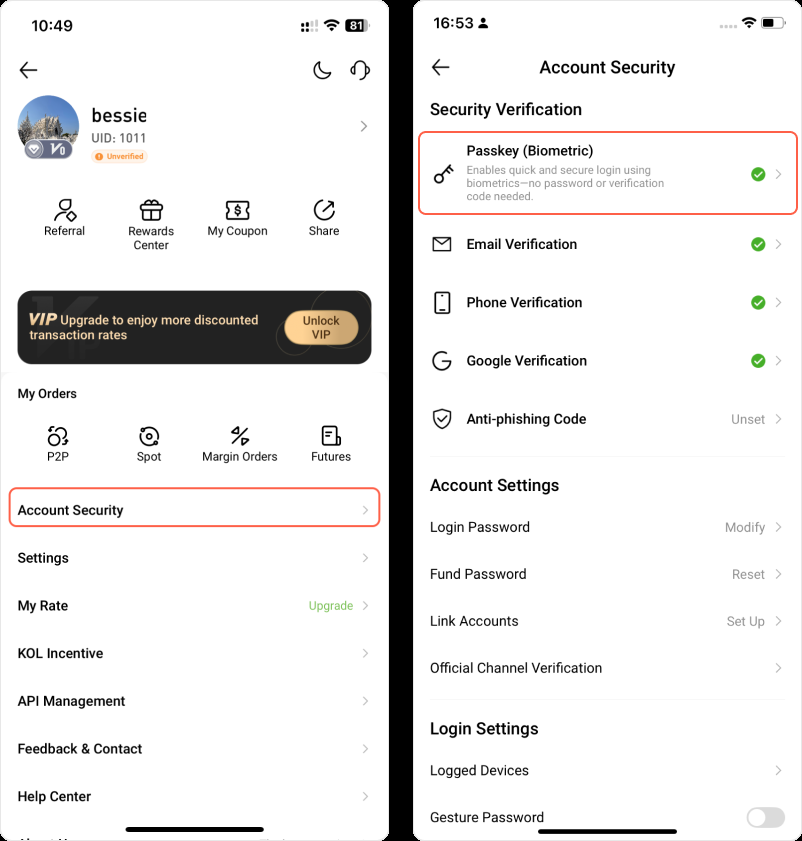


2. On the Create Passkey page, tap Continue to proceed, and verify your identity using the security method(s) linked to your account.
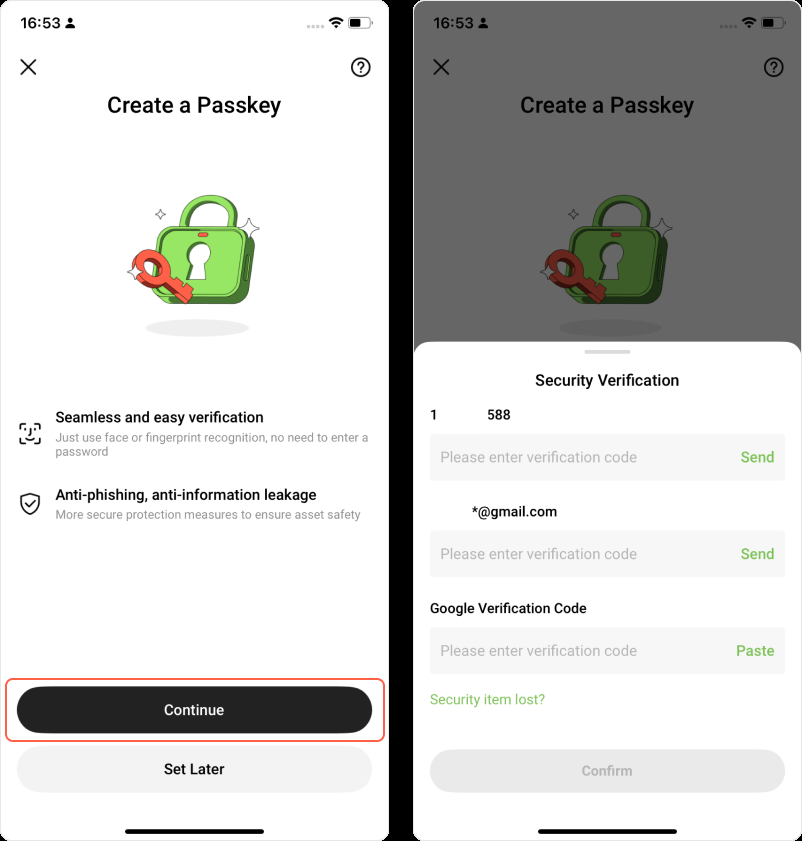


3. After completing the security verification, you can create a passkey on this device.
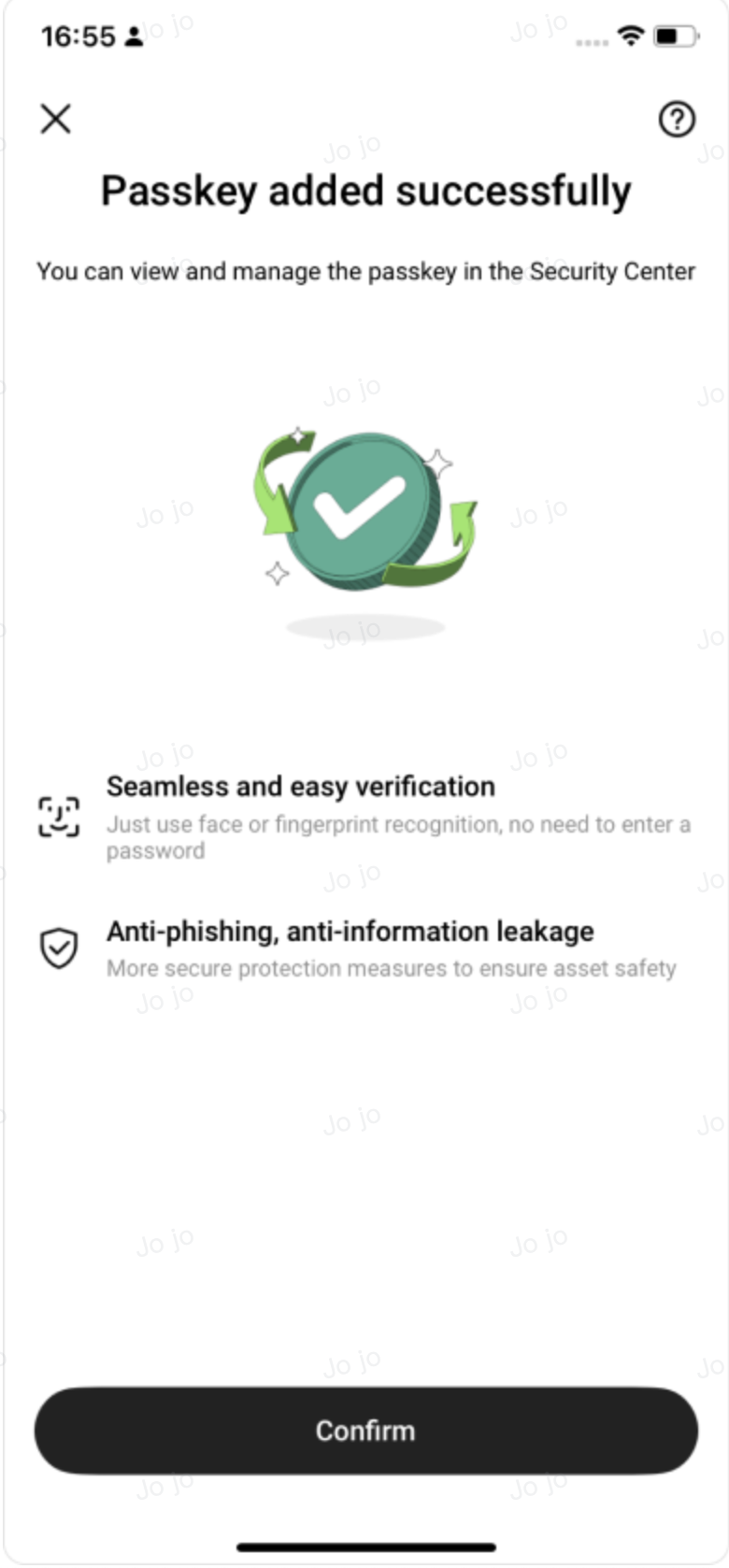


4. After successfully creating a passkey, you can view the details on the Passkey page and edit the passkey name to help differentiate between devices.
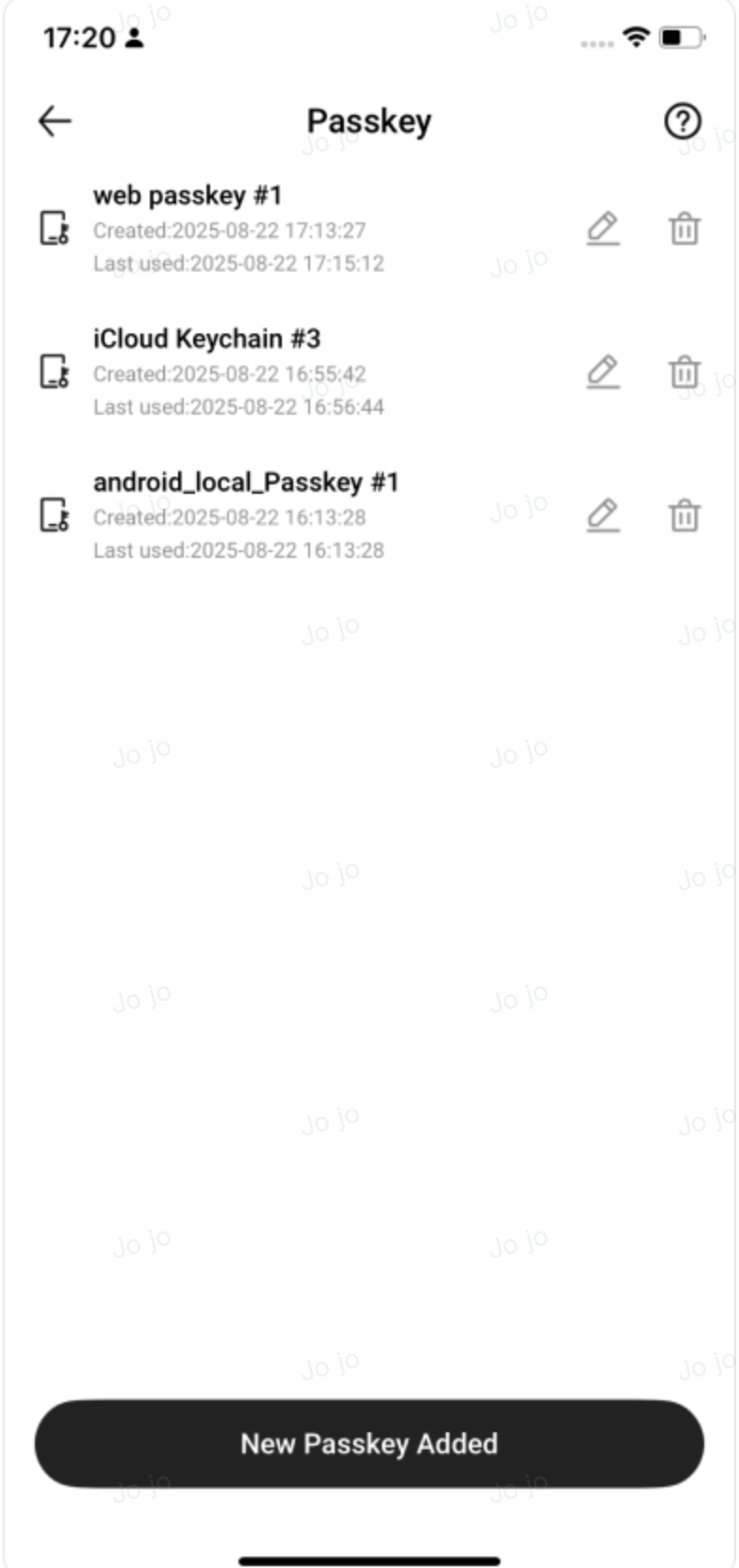


💡 Next time you log in, you can choose to use your passkey for a password-free login experience.


Step 2: How to Log In with Your Passkey


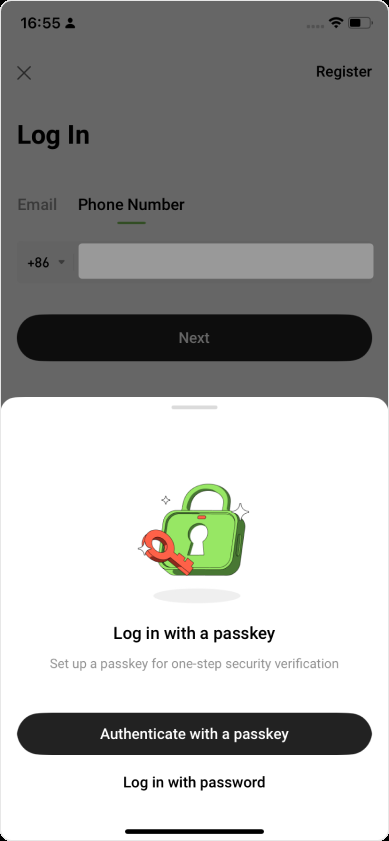
1. Go to the App login page, enter your account, and tap “Next”. 


2. The system will prompt that you can Authenticate with a passkey. After verifying the passkey, you can log in without entering a password. You may also choose “Log in with password” to continue.


Step 3: How to Rename Your Passkey


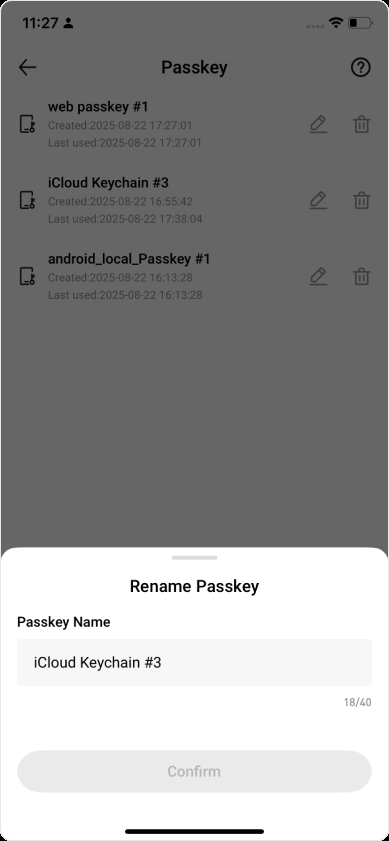
You can go to Profile Center > Account Security > Passkey to rename your passkey for easier identification.


Note: Changing the passkey name only updates how it appears on Hotcoin's passkey management page. To change the actual device name (e.g., in Chrome), go to Manage Devices > Linked Devices in your Chrome browser.


Step 4: How to Delete Your Passkey


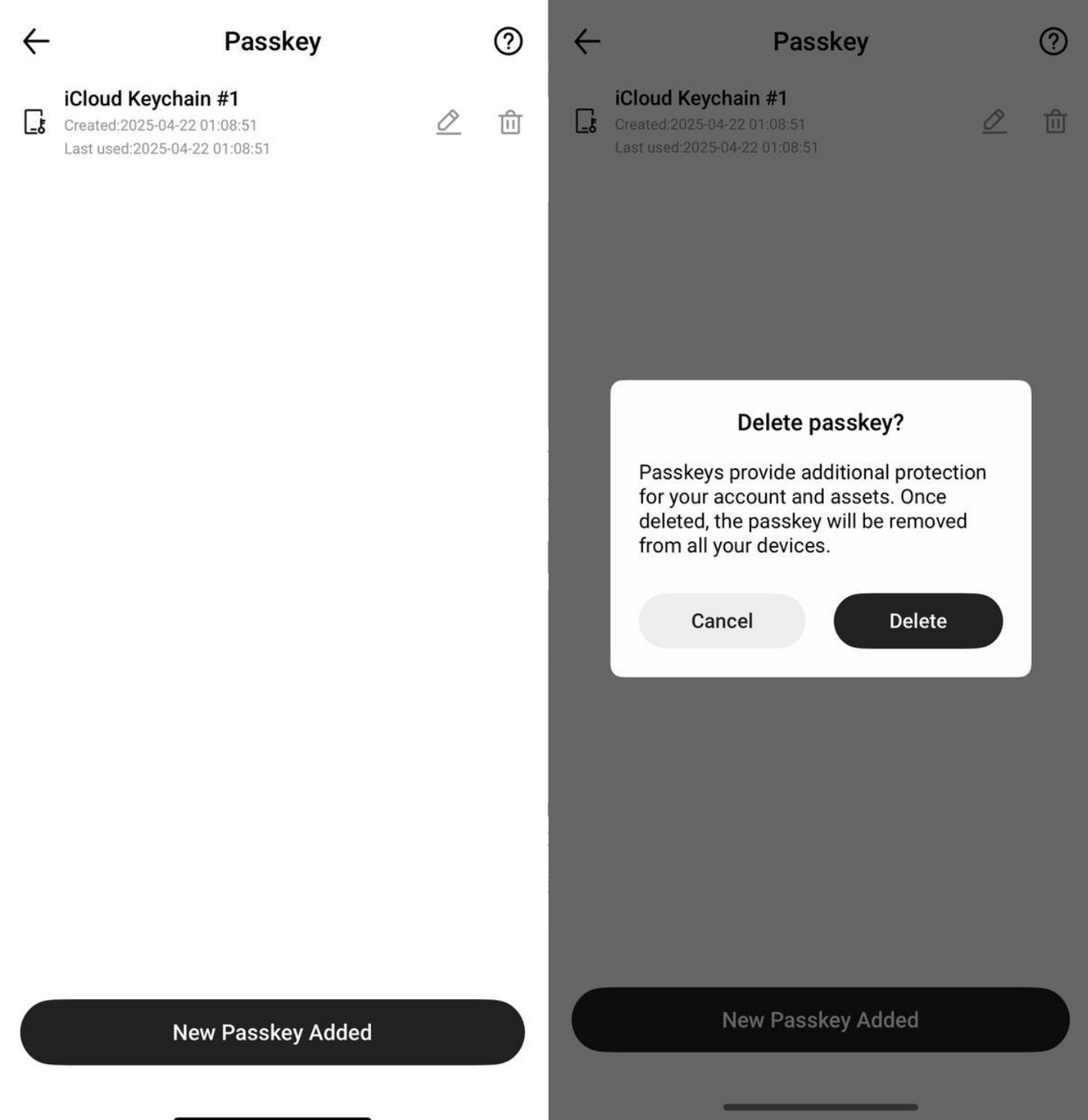
Each account can store up to 10 passkeys across different devices. If you exceed the limit, you can delete unused ones—but note that doing so may lower your account or device security. Please consider the risks before proceeding.


💡 Kind Reminder:

  • Keep your biometric passkey secure. If it's lost, stolen, or compromised, contact us immediately.
  • Never share your passkey or login credentials with any third party to avoid potential asset loss.


How to Set Up a Biometric Passkey on the Hotcoin Website


Step 1: Create a Passkey


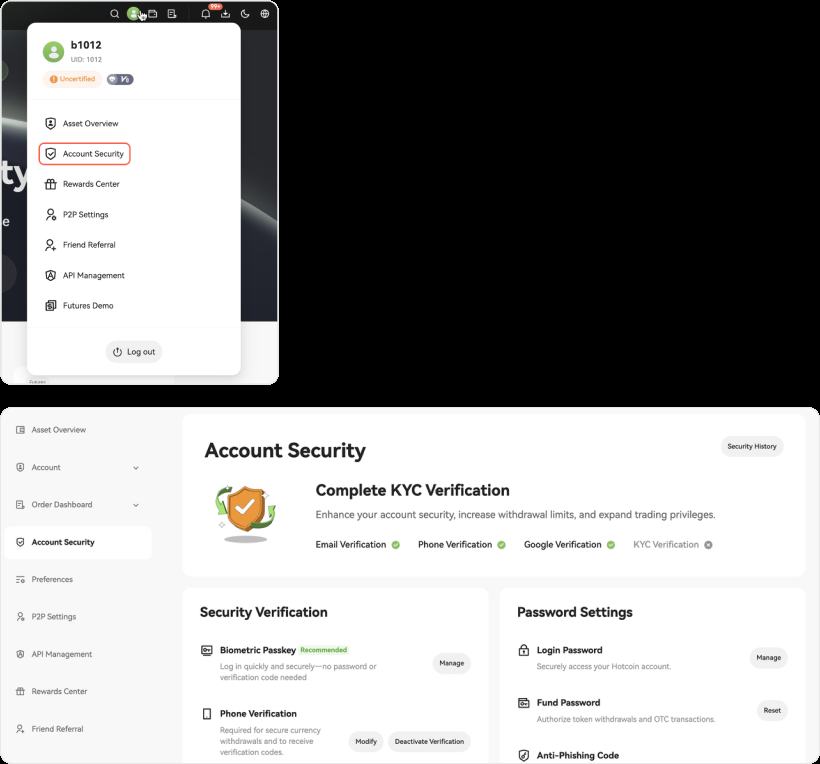
1. Go to Account Security page, click Not Enabled or Manage next to Biometric Passkey. 


2. Click Create Passkey, and complete the required security verification based on the methods currently linked to your account.
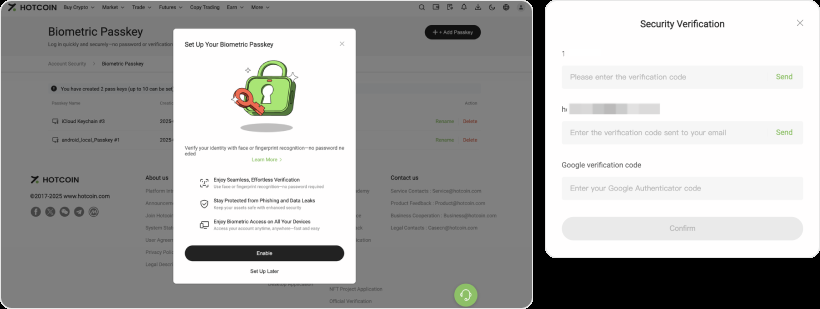


3. After completing identity verification, you can choose any available method to create your passkey.
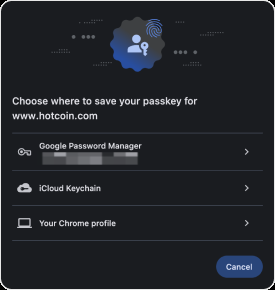
  • If you primarily use an iPhone or Mac, it is recommended to use iCloud Keychain.
  • If you primarily use Android devices or the Chrome browser, it is recommended to use Google Password Manager or a Chrome profile.


4. Once the passkey is successfully created, you can view its details on the Biometric Passkey page and rename it for easier identification.
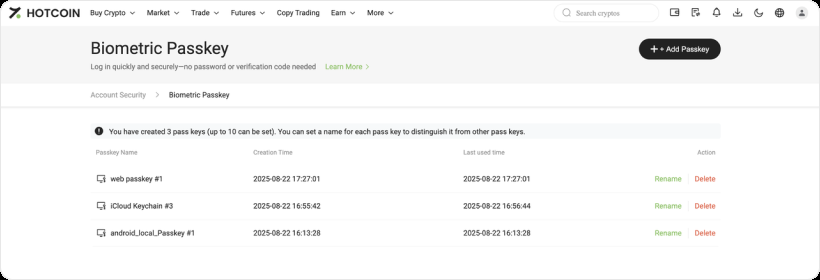


Step 2: Log In with a Passkey


1. Go to the web login page, enter your account, and click Next. 

2. The system will prompt you to log in using a passkey. After verifying the passkey, you can log in without entering a password. You may also choose Log in with password to continue.
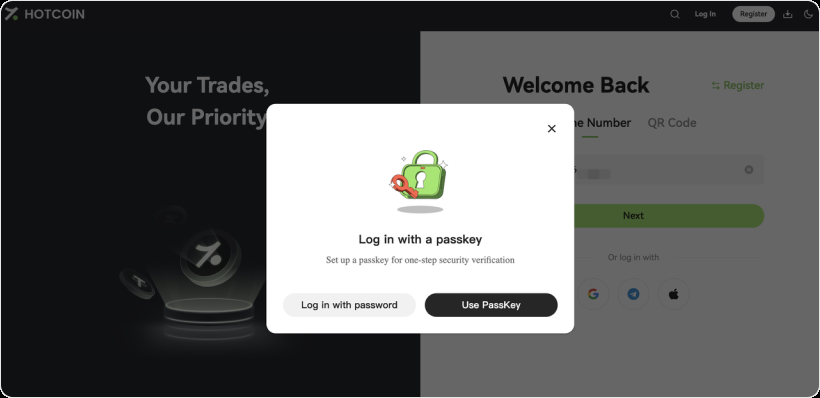


Step 3: Rename a Passkey


You can go to Personal Center → Account Security → Passkey to rename your passkey, making it easier to identify.
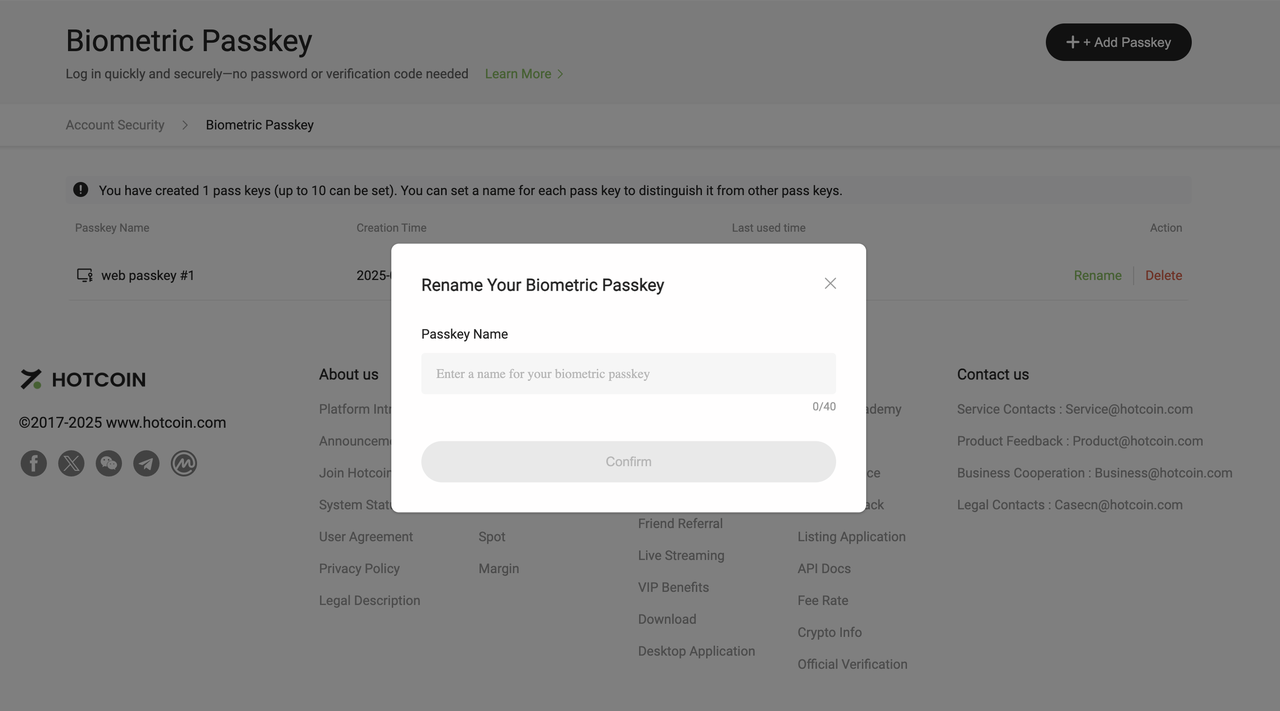


📝 Note: Changing the passkey name only affects how it appears on the Hotcoin passkey management page. If you wish to rename the device itself, you can do so directly on your device. For example, in the Chrome browser, you can edit the device name under Manage Devices → Linked Devices.
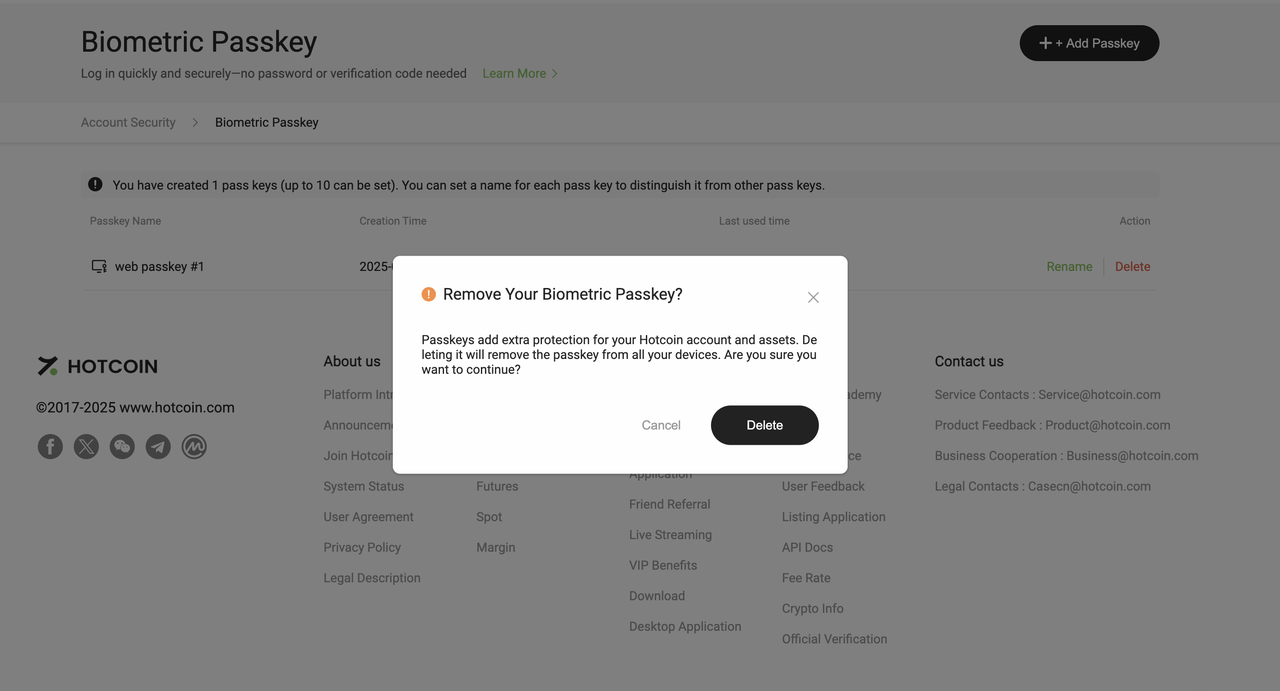


Step 4: Delete a Passkey


  • Each account can have up to 10 passkeys across different devices. If the number exceeds this limit, you may delete any unused passkeys.
  • Please note that deleting a passkey may reduce the security level of your account or device. It is strongly recommended that you carefully consider the potential risks before proceeding.  
      

Quick Start Guide
Cryptocurrency Basics
Beginner’s Guide
App Guide
Start Trading
VIP Program
Rewards Center
Account Security & KYC
Asset Security
Security Settings
KYC Verification
Deposit & Withdrawal
Deposit
Withdrawal
P2P
P2P Trading Guide
P2P Merchant Management
P2P Rules & Agreements
Friend Referral
Spot Trading
Spot Trading
Pre-market trading
Derivatives
Advanced Trading
Grid Trading
Trend Trading
Fundamentals of Technical Analysis (Candlesticks / MACD / RSI)
Prediction Market
Futures Grid
Futures Trading
Getting Started
Contract Type
Trading Mechanics
Risk Management
FAQ
Copy Trading
Getting Started
Follower Guide
Lead Trader Guide
Terms of Service
Web3 Wallet
Getting Started
Swap
Hotcoin Card
Hotcoin Earn
Alpha
Startup
Platform Support
Agreements & Rules