
HOTCOIN Logo
Buy Crypto
Market
Trade
Futures
Earn
Rewards Hub
More
Web3 Wallet
Service Contacts

[email protected]

Product Feedback

[email protected]

Business Cooperation

[email protected]

Legal Contacts

[email protected]

Contact us
Service Contacts

[email protected]

Product Feedback

[email protected]

Business Cooperation

[email protected]

Legal Contacts

[email protected]

About us
Platform Introduction
Announcement Center
System Status
User Agreement
Privacy Policy
Legal Description
Products
Futures
Spot
Copy Trading
Margin
Earn
Trade Crypto via P2P
Buy Crypto with Card
Web3 Wallet
Service
Live Streaming
Hotcoin Elite Picks
Rewards Center
Friend Referral
VIP Benefits
Download
P2P Merchant Application
Support
Hotcoin Academy
Help Center
API Docs
Fee Rate
Crypto Info
Listing Application
Online Service
User Feedback
Official Verification
Trading
BTC USDC
ETH USDC
BTC USDT
ETH USDT
PI USDT
SOL USDT
XRP USDT
©2017-2026
Help Center
/Spot Trading/Spot Trading/
How to Trade Spot on Hotcoin (Web)
Help Center
/Spot Trading/Spot Trading/
How to Trade Spot on Hotcoin (Web)

How to Trade Spot on Hotcoin (Web)

Hotcoin
Share


If you have registered a Hotcoin account, follow the steps below to start spot trading.


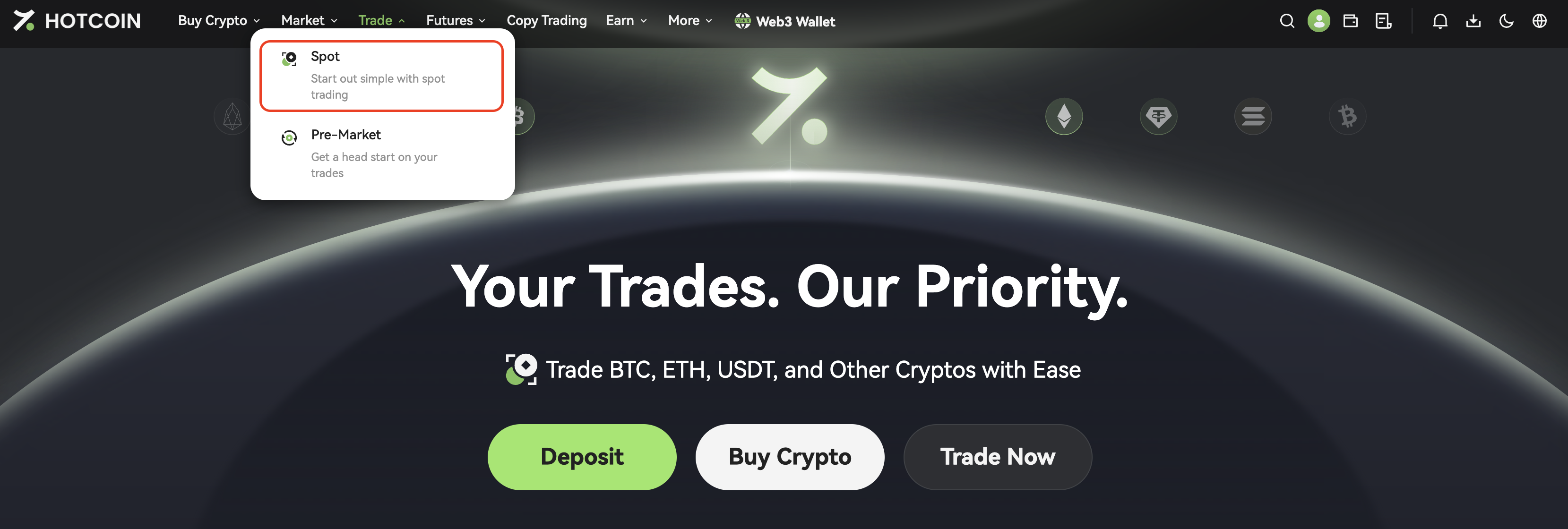
Step 1: Access the Spot Trading Page

Log in to your Hotcoin account, then click Trade → Spot to enter the trading page.


Step 2: Understand the Trading Interface


On the spot trading page, you will see the following key sections:
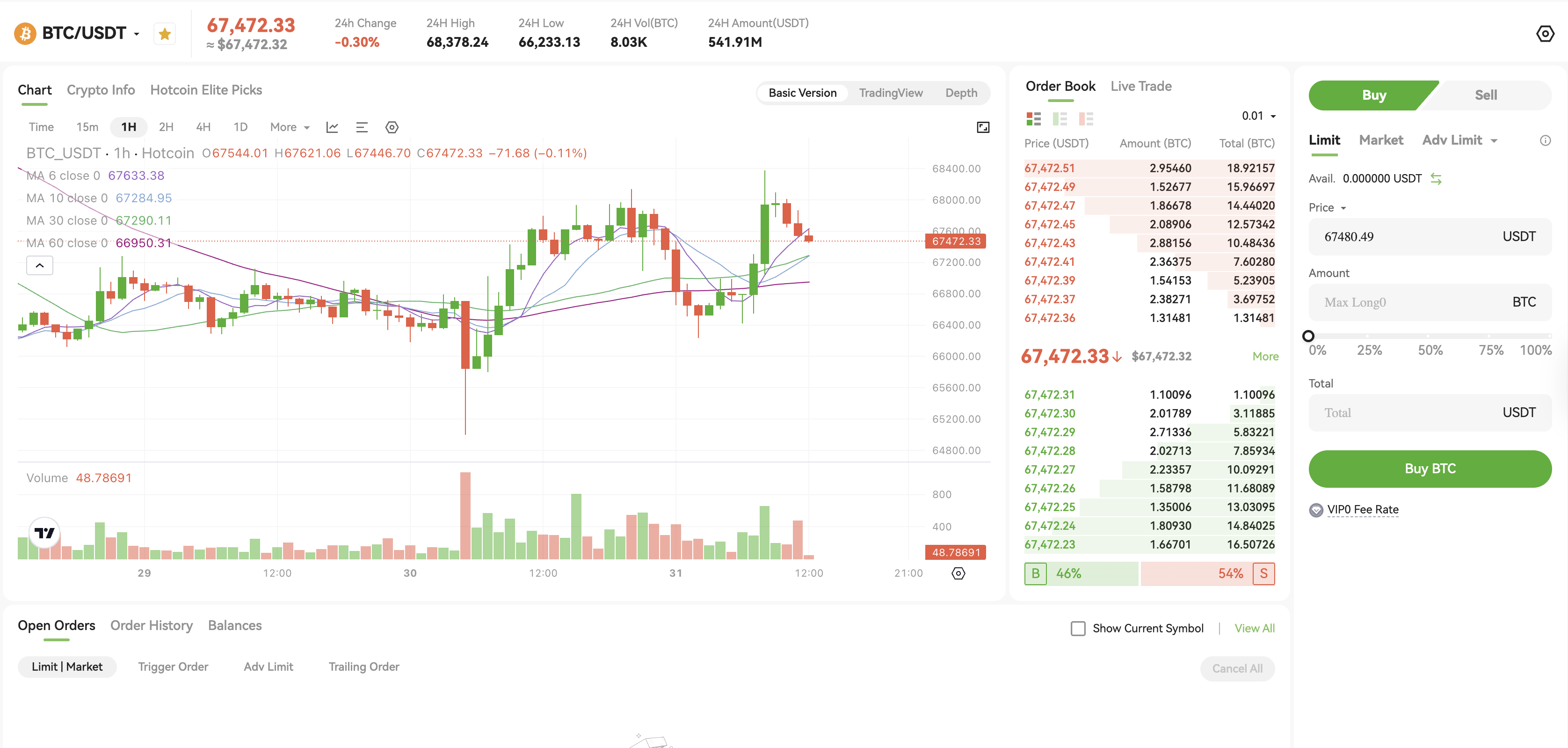
   

1. Trading Pair Info: Displays the selected trading pair and 24h volume
2. K-line Chart: View price trends and technical indicators
3. Order Book / Live Trade: View current buy/sell orders and latest trades
4. Buy / Sell Toggle: Switch between buy and sell
5. Order Type: Choose Limit, Market, or Advanced Limit orders
6. Order Panel: Enter price and quantity to place an order
7. Orders & Assets: View open orders, order history, and account assets


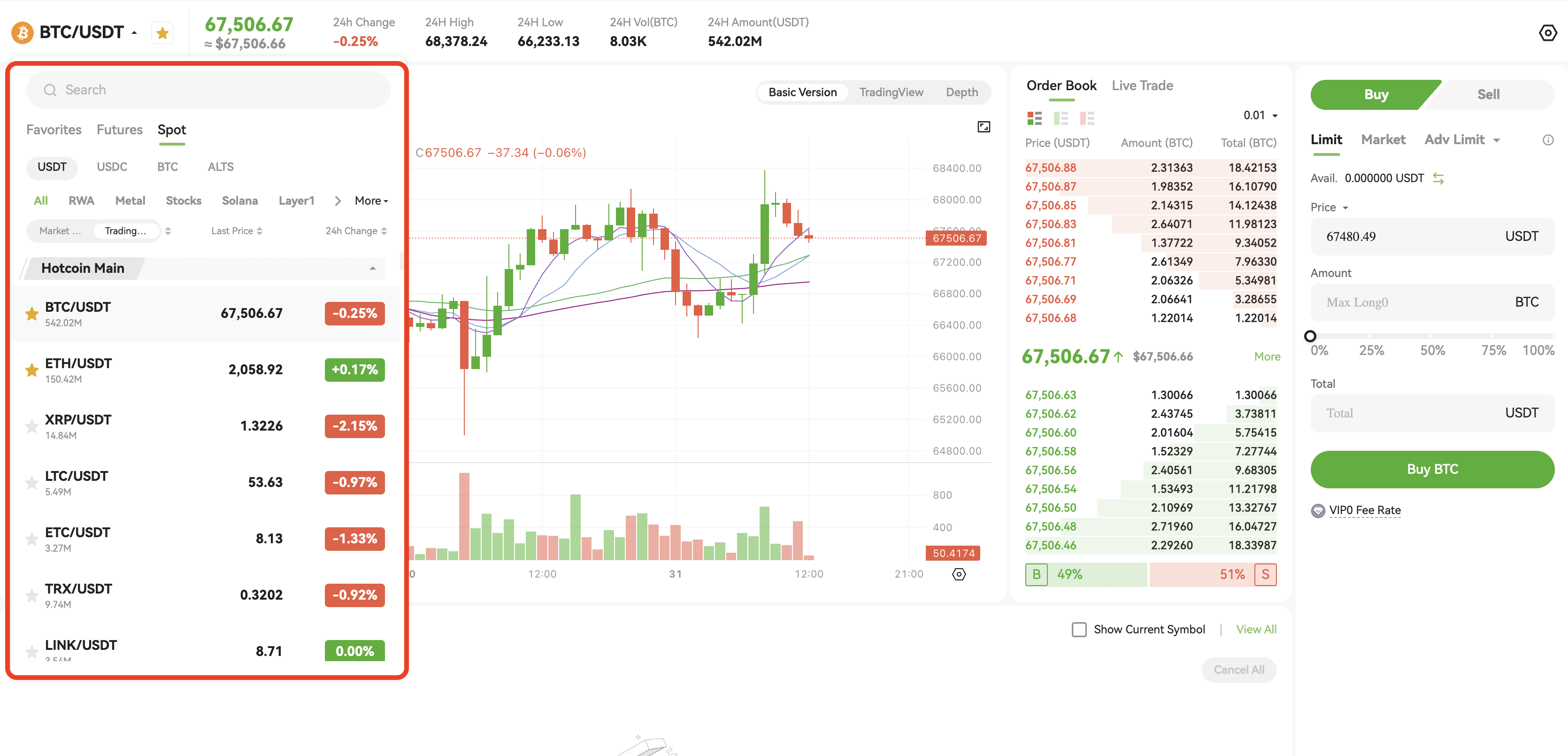
Step 3: Select a Trading Pair


Select the trading pair you want from the top-left corner, such as BTC/USDT.


Step 4: Place an Order


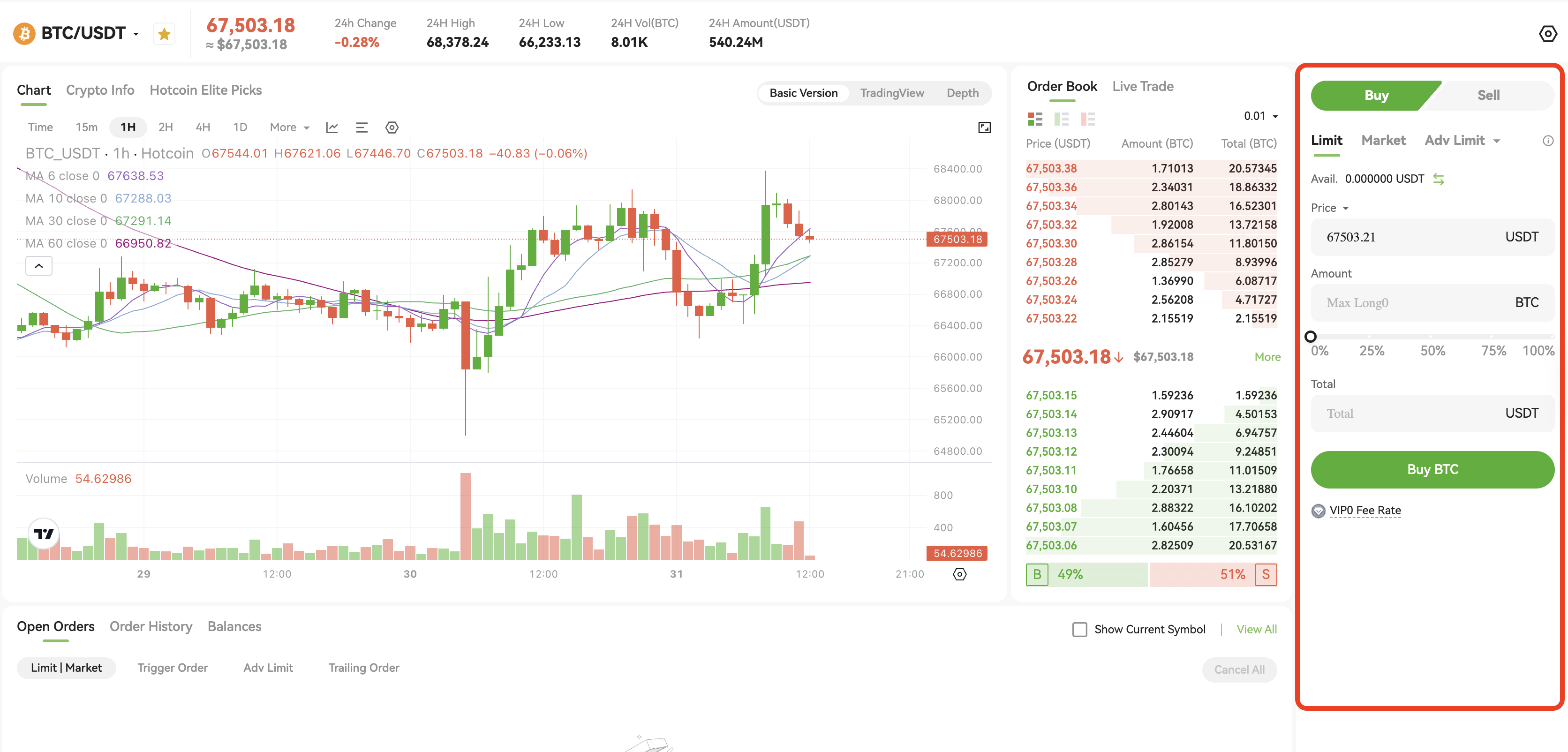
On the right side of the page, select Buy or Sell, then choose an order type:

  • Limit Order: Set your desired price
  • Market Order: Execute immediately at the best available market price
  • Advanced Limit Order: Supports multiple order options (e.g., Post Only, FOK, IOC)

👉 Learn more: What Are Market Orders, Limit Orders, and Advanced Limit Orders?


Enter the price and quantity, or use the slider to select a percentage of your account balance.


Step 5: Confirm the Order


Click Buy BTC or Sell BTC to complete the order.
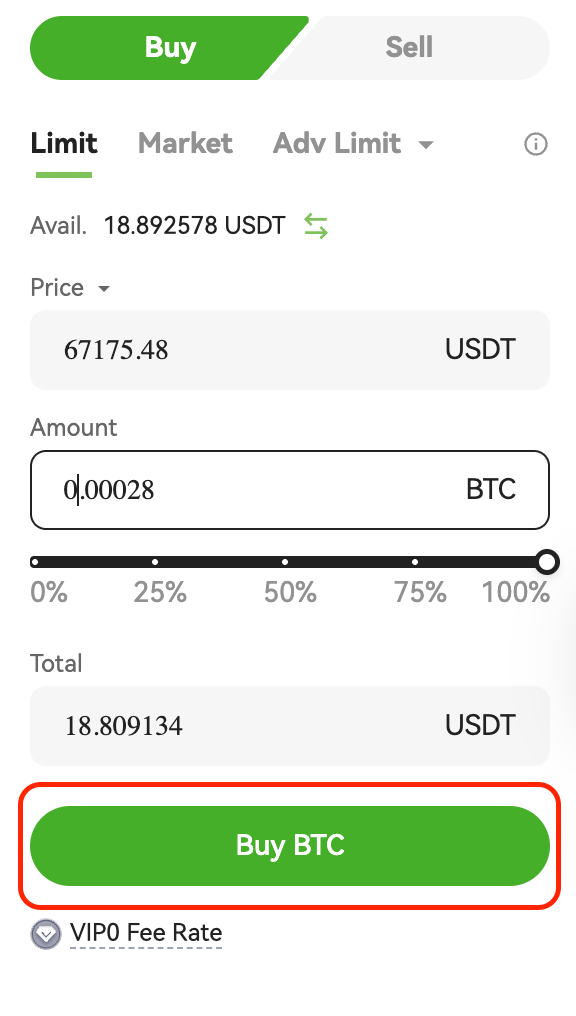


Note: The default order type is Limit Order. To ensure faster execution, you may choose Market Order.

Quick Start Guide
Cryptocurrency Basics
Beginner’s Guide
App Guide
Start Trading
VIP Program
Rewards Center
Account Security & KYC
Asset Security
Security Settings
KYC Verification
Deposit & Withdrawal
Deposit
Withdrawal
P2P
P2P Trading Guide
P2P Merchant Management
P2P Rules & Agreements
Friend Referral
Spot Trading
Spot Trading
Pre-market trading
Derivatives
Advanced Trading
Grid Trading
Trend Trading
Fundamentals of Technical Analysis (Candlesticks / MACD / RSI)
Prediction Market
Futures Grid
Futures Trading
Getting Started
Contract Type
Trading Mechanics
Risk Management
FAQ
Copy Trading
Getting Started
Follower Guide
Lead Trader Guide
Terms of Service
Web3 Wallet
Getting Started
Swap
Hotcoin Card
Hotcoin Earn
Alpha
Startup
Platform Support
Agreements & Rules