What Is P2P Trading?
P2P (Peer-to-Peer) trading allows users to buy and sell cryptocurrencies directly with one another, without intermediaries. Unlike traditional exchange-matching models, P2P trading gives users the flexibility to choose trading partners, negotiate prices, and select preferred payment methods independently. Hotcoin P2P supports trading cryptocurrencies using fiat currencies such as CNY, THB, and other local options. The platform integrates escrow protection, order-matching tools, and a dispute resolution system to ensure secure, transparent, and fair transactions.
How to Sell Crypto via P2P on the Web
1. Log In and Go to the P2P Sell Page
Log in to the Hotcoin website. Hover over the Buy Crypto menu at the top and select Trade Crypto via P2P from the dropdown menu.
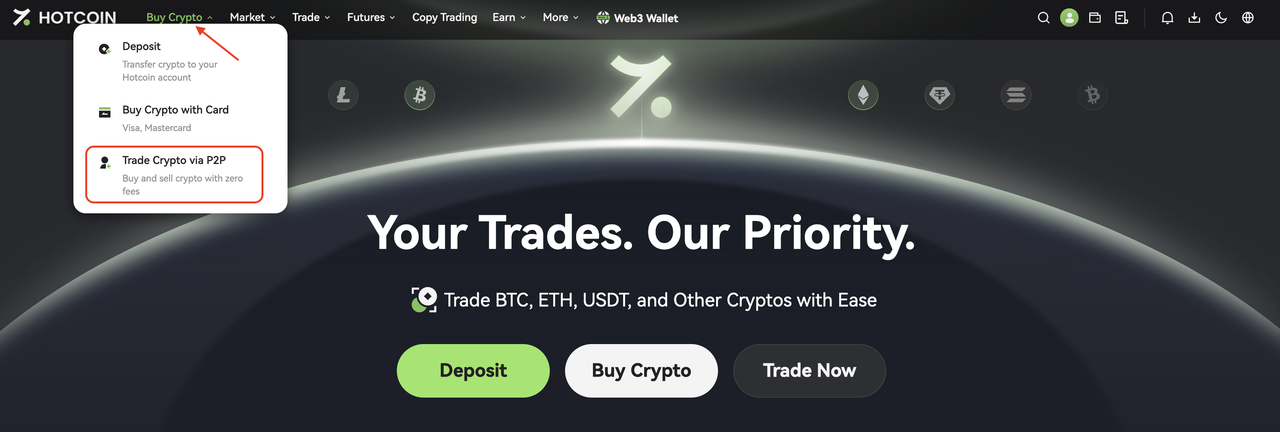
After entering the page, click the Sell tab to access the P2P selling interface.
2. Browse Listings and Choose a Suitable Buyer
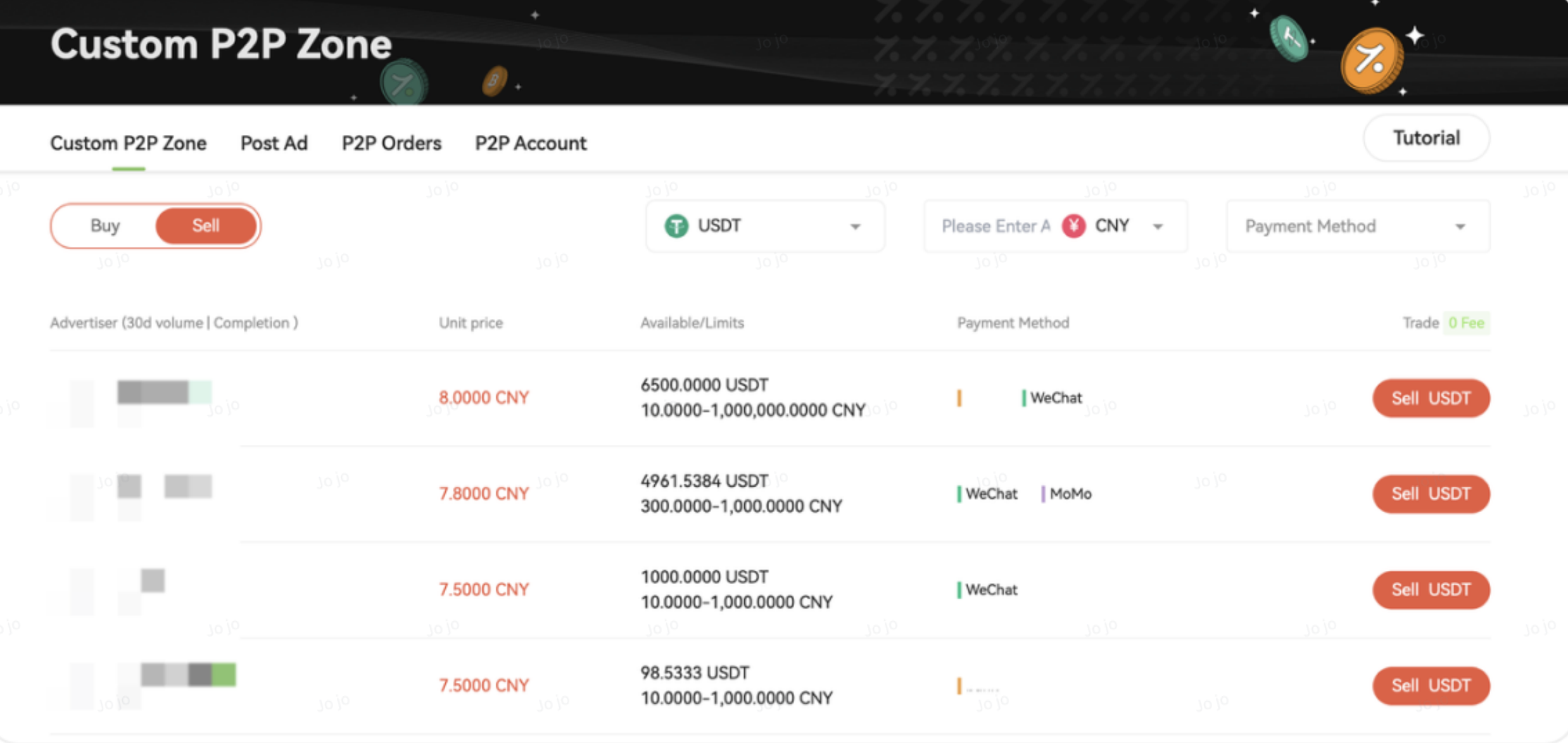
On the Sell page, the following selling conditions are set by default:
- Cryptocurrency: USDT
- Fiat currency: Based on your account settings
Each listing shows the following information:
- USDT price
- Available purchase amount
- Order limits
- Supported payment methods
After reviewing the list, select a suitable buyer. Pay attention to the following:
- Price: Select a buyer whose quoted price meets your expectations
- Limits: Ensure your selling amount falls within the buyer’s order limits
- Completion rate: Prioritize buyers with a completion rate above 95% for higher reliability
3. Add a P2P Payment Method
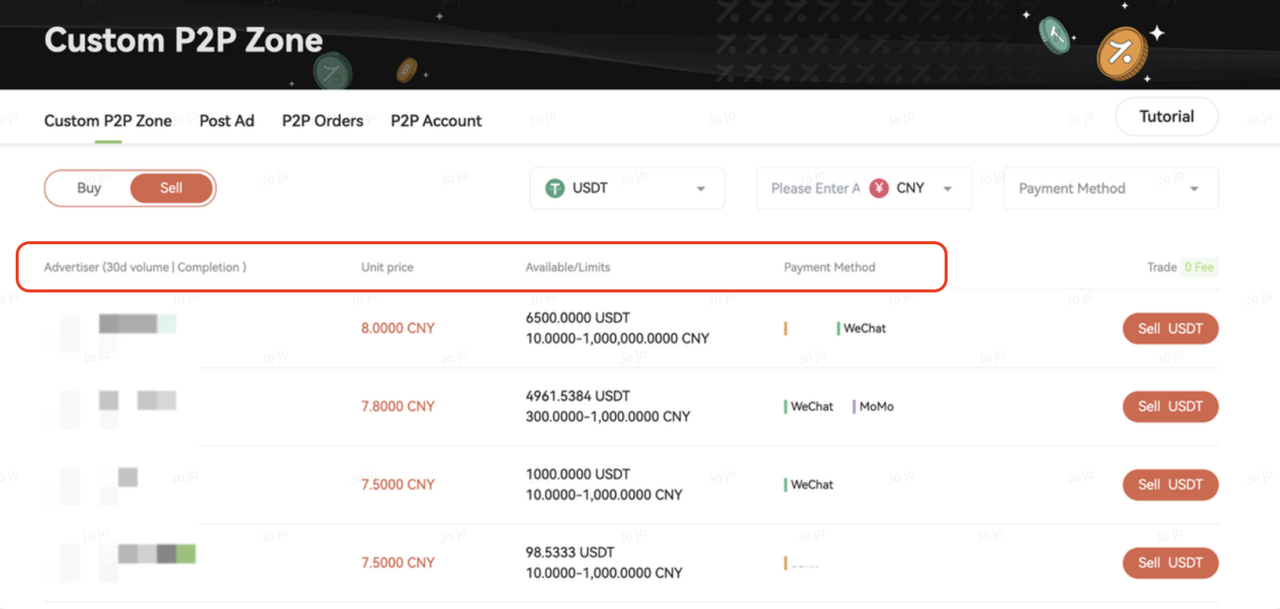
If this is your first time selling cryptocurrency, you will need to add a payment method supported by the buyer.
Steps:
- Click the red Sell button next to the buyer. In the pop-up window, click Enable and then click Add on the P2P Payment Method page
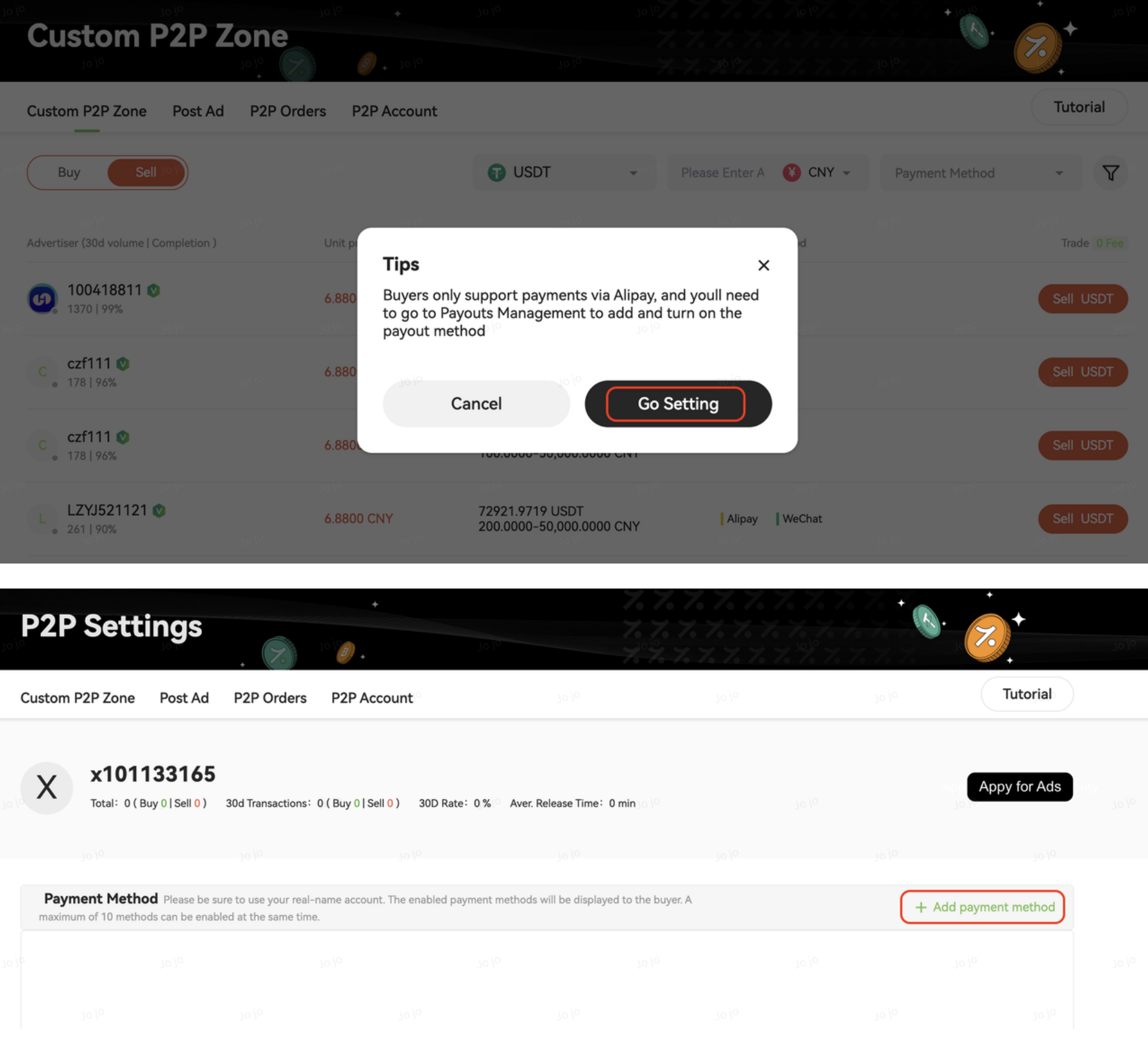
- Select a payment method that allows you to check the received funds in real time, such as:
- A bank card with SMS balance notifications enabled
- WeChat Pay
- Alipay
- Enter the payment details as instructed on the page (please carefully verify your account information to avoid payment issues)
- Complete the security verification and confirm to add the payment method
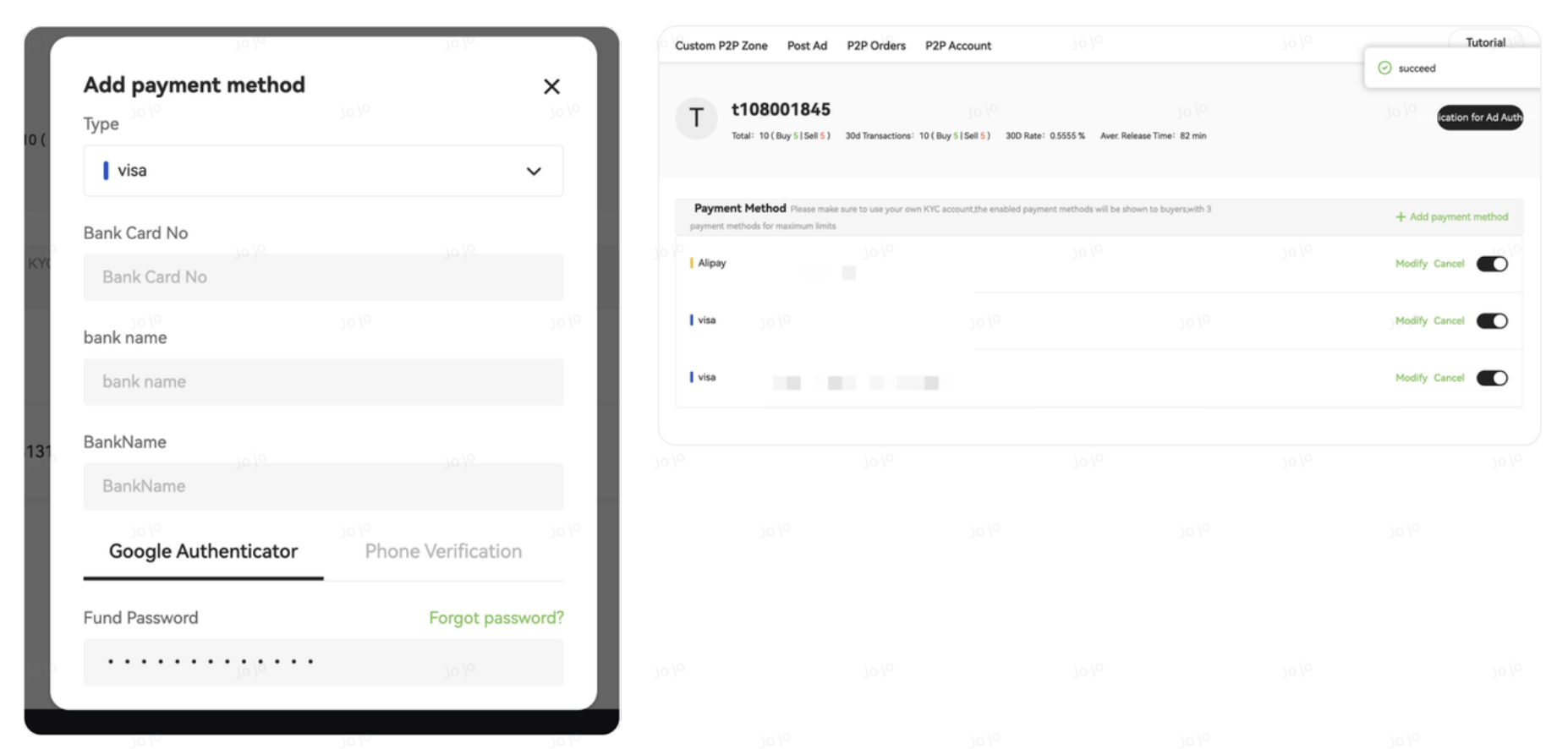
- You can also add new payment methods in P2P Settings under your account center.
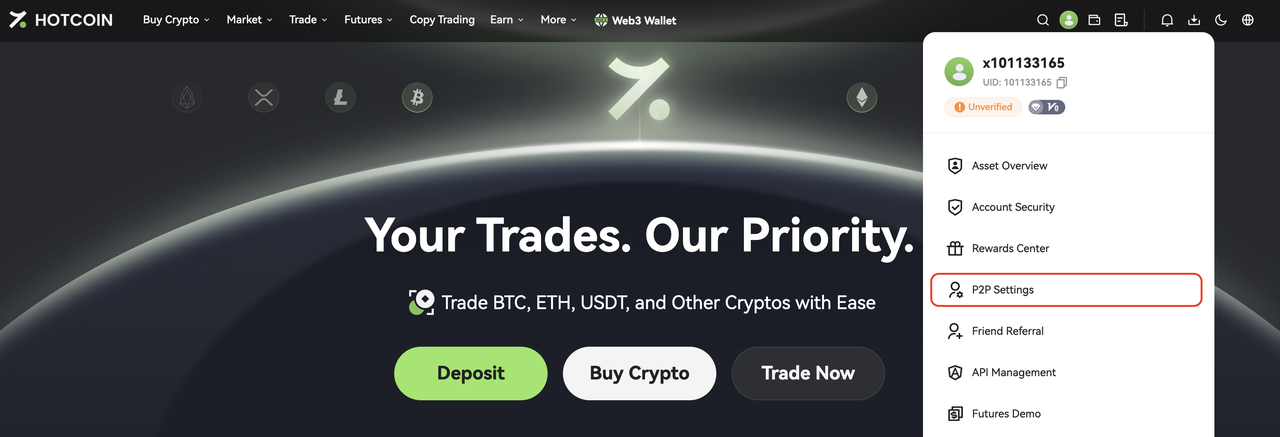
4. Place an Order and Wait for Payment
- Click the red Sell button next to the selected buyer
- Enter the fiat amount you wish to receive under You Receive, or enter the amount of USDT you wish to sell under You Sell.
- The system will automatically select your payment method. If multiple payment methods are supported and you have added more than one, you can switch between them.
- Enter your fund password and complete the security verification
After placing the order, your USDT will be temporarily locked by the platform while waiting for the buyer to complete the payment.
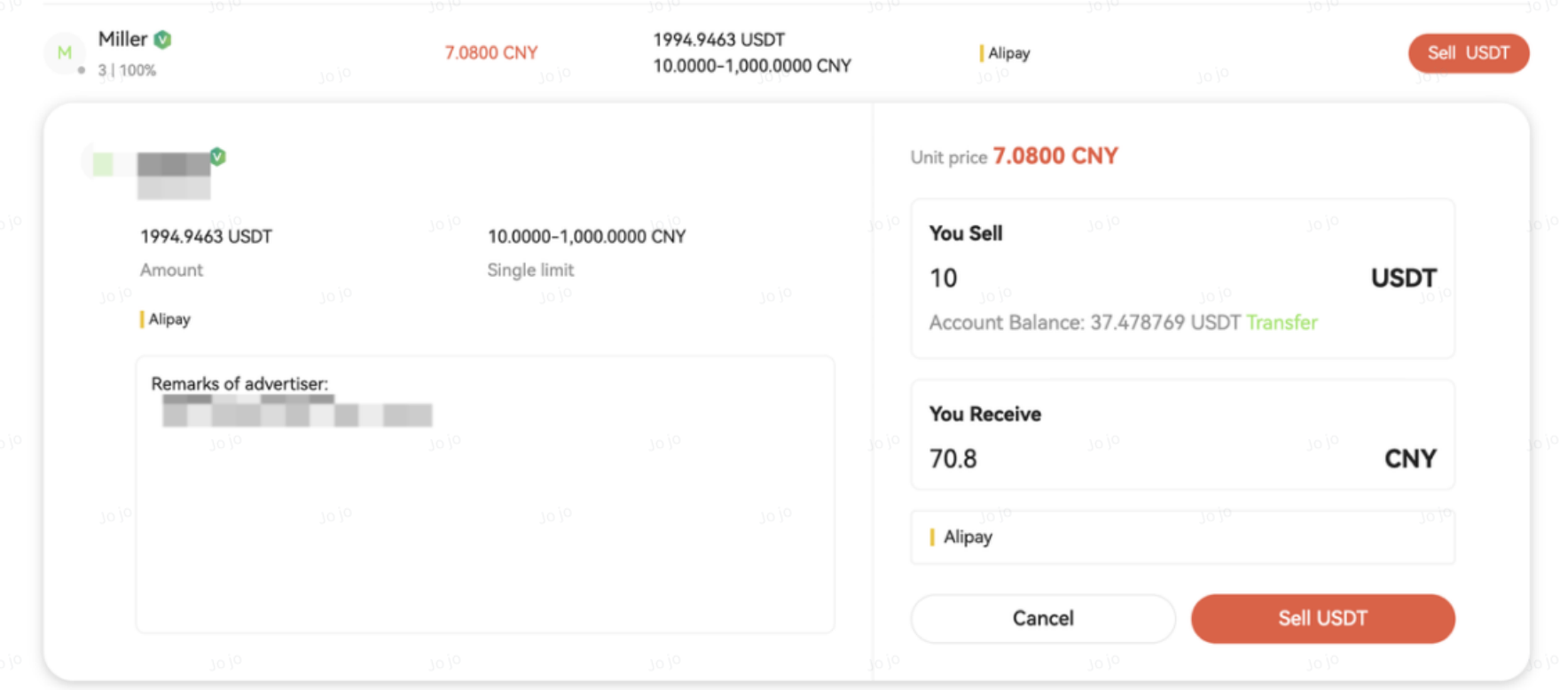
Note: If your P2P account has no available assets, you can transfer funds from your Spot account or other accounts to your P2P account using the Transfer feature.
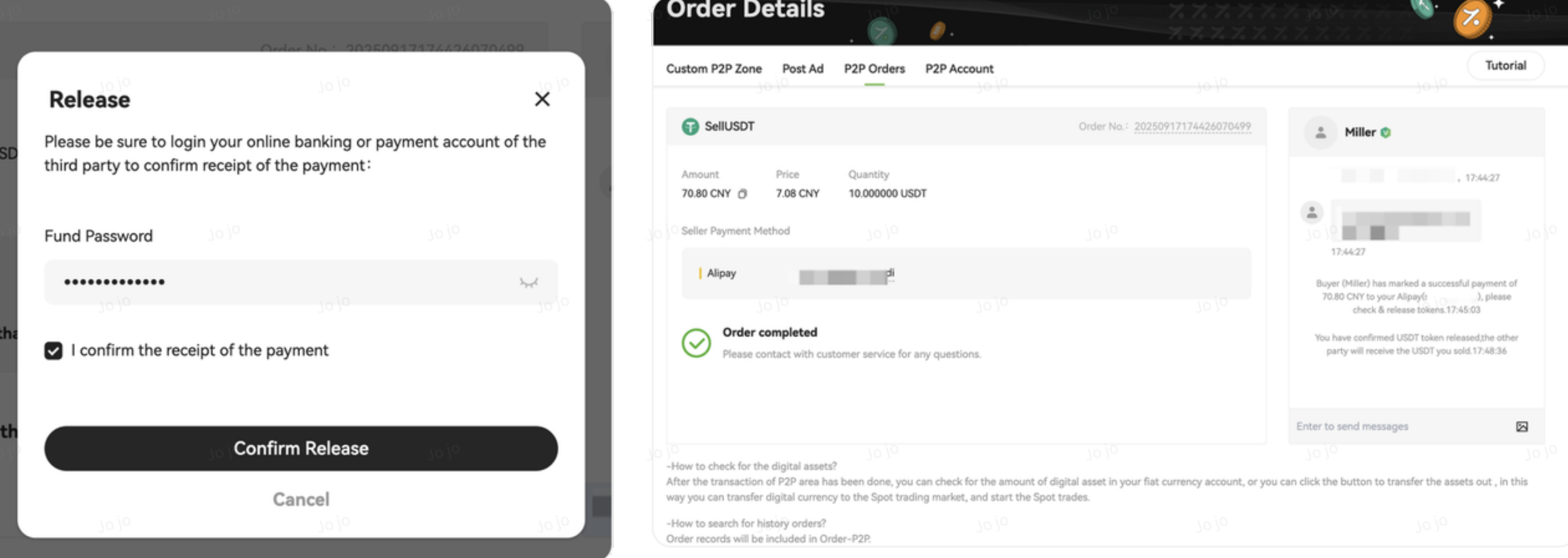
5. Confirm Receipt and Release Cryptocurrency
- After receiving the buyer’s payment notification, log in to your payment app (such as mobile banking or Alipay)
- Verify that the funds have been received and that the amount is correct
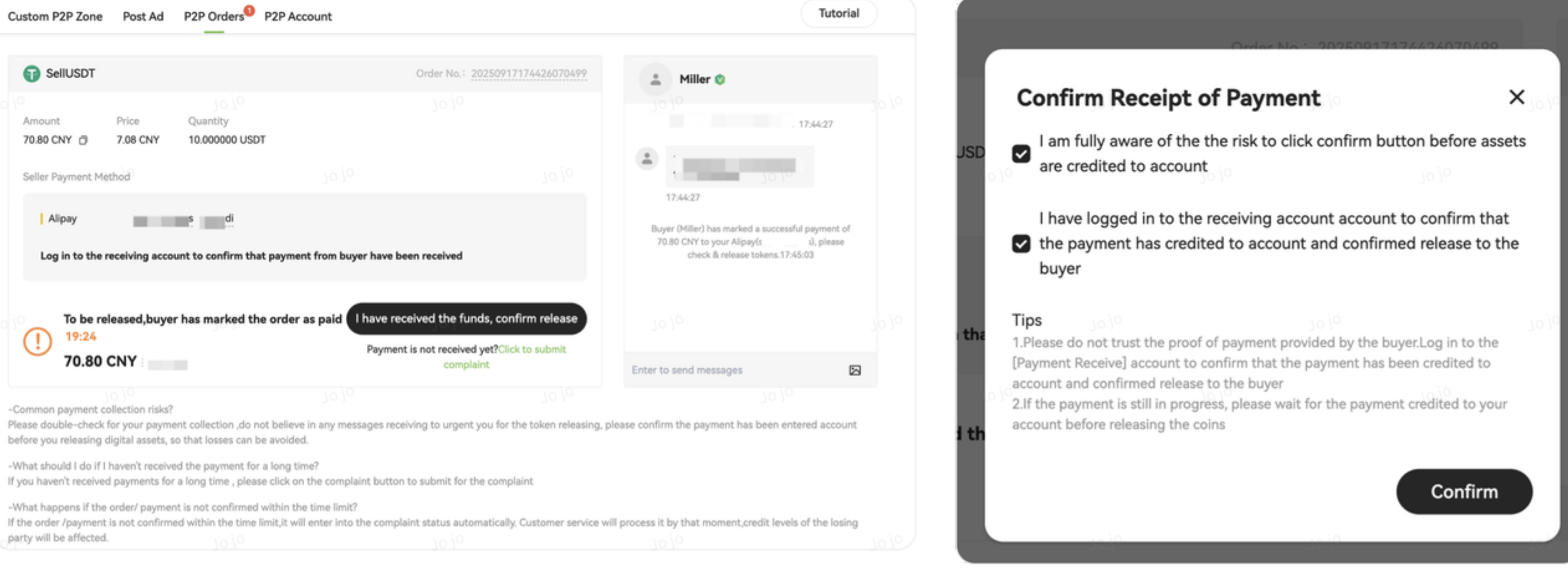
- Once confirmed, return to the order page in the Hotcoin App and click Payment Confirmed
⚠️ Important Security Tips
- Do not release cryptocurrency based solely on a payment screenshot sent by the buyer. Screenshots can be forged.
- Do not trust any urging or promises from buyers in chat. Always rely on the actual payment confirmation in your bank or payment account.
- Never click Confirm Release before verifying that the funds have been received.
Related Articles
P2P Trading FAQs
P2P Orders and Account Assets
P2P Trading Safety and Dispute Handling
How to Sell Crypto via Hotcoin P2P on the App
How to Buy Crypto via Hotcoin P2P on the App
How to Buy Crypto via Hotcoin P2P on the Web