
HOTCOIN Logo
Buy Crypto
Market
Trade
Futures
Earn
Rewards Hub
More
Web3 Wallet
Service Contacts

[email protected]

Product Feedback

[email protected]

Business Cooperation

[email protected]

Legal Contacts

[email protected]

Contact us
Service Contacts

[email protected]

Product Feedback

[email protected]

Business Cooperation

[email protected]

Legal Contacts

[email protected]

About us
Platform Introduction
Announcement Center
System Status
User Agreement
Privacy Policy
Legal Description
Products
Futures
Spot
Copy Trading
Margin
Earn
Trade Crypto via P2P
Buy Crypto with Card
Web3 Wallet
Service
Live Streaming
Hotcoin Elite Picks
Rewards Center
Friend Referral
VIP Benefits
Download
P2P Merchant Application
Support
Hotcoin Academy
Help Center
API Docs
Fee Rate
Crypto Info
Listing Application
Online Service
User Feedback
Official Verification
Trading
BTC USDC
ETH USDC
BTC USDT
ETH USDT
PI USDT
SOL USDT
XRP USDT
©2017-2026
Help Center
/Deposit & Withdrawal/Withdrawal/
How to Add and Manage Withdrawal Addresses in the App?
Help Center
/Deposit & Withdrawal/Withdrawal/
How to Add and Manage Withdrawal Addresses in the App?

How to Add and Manage Withdrawal Addresses in the App?

Hotcoin
Share


A withdrawal address is a blockchain address used to receive digital assets during a withdrawal. To enhance asset security, you can save frequently used withdrawal addresses for quick selection during future withdrawals. This article explains how to add and manage (edit or delete) withdrawal addresses on the App and introduces related security settings.


How to Add a Withdrawal Address

  
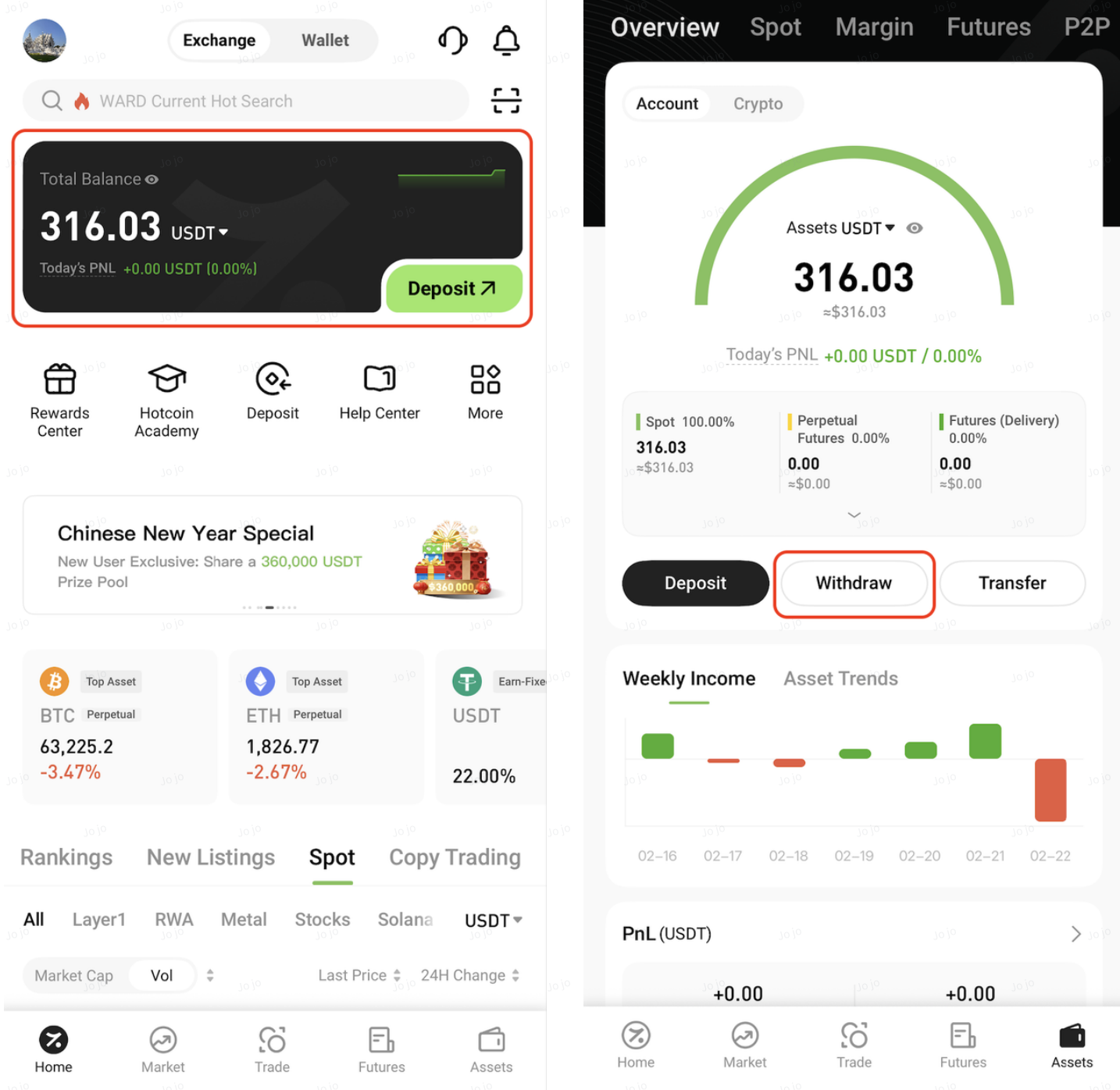
1. Open the Hotcoin App. On the homepage, tap Total Assets at the top, then go to Asset Overview → Withdraw


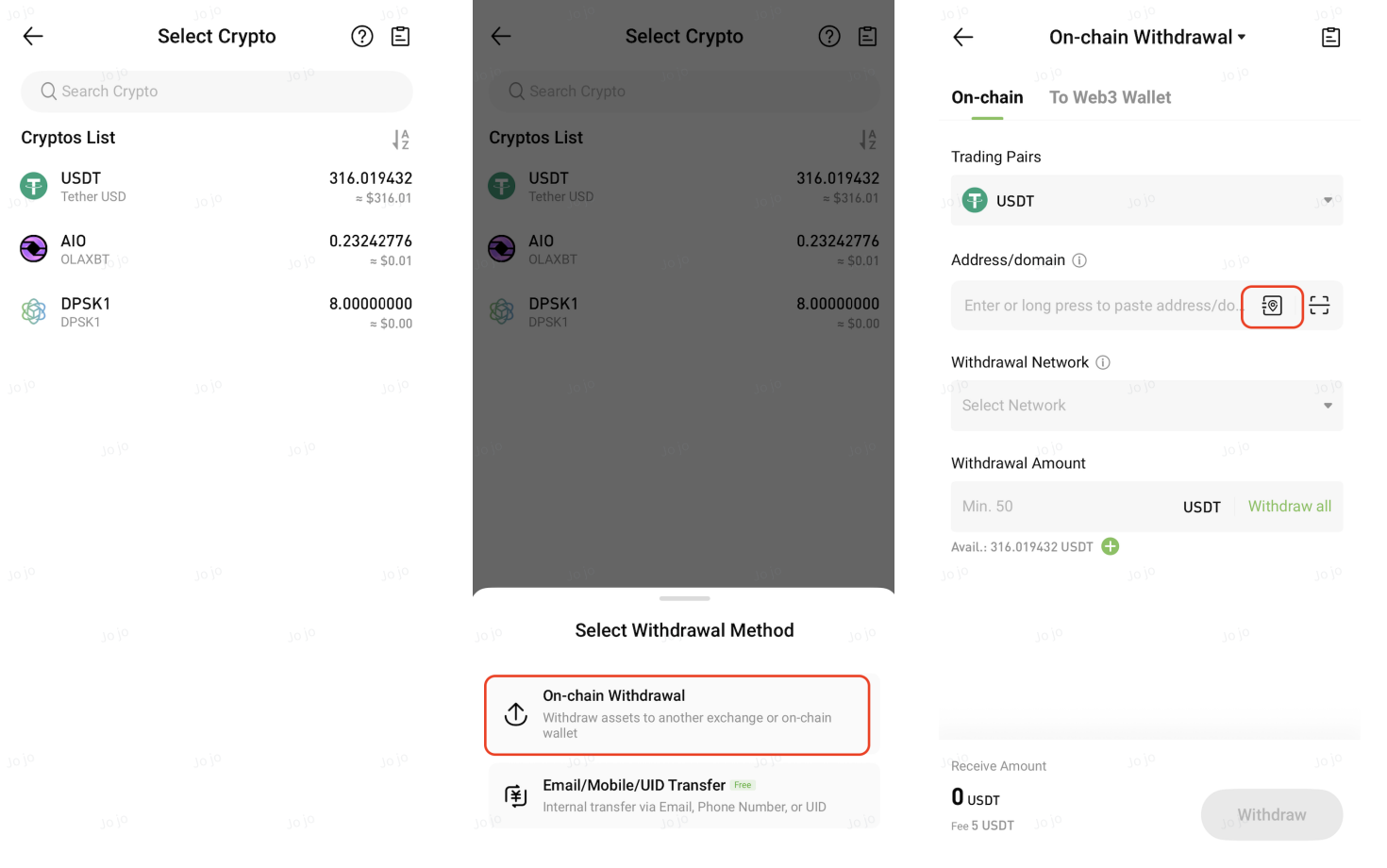
2. On the Select Crypto page, choose the crypto you wish to withdraw. In the pop-up window, select On-chain Withdrawal. On the On-chain Withdrawal page, tap the Address Book icon on the right side of the Address/Domain input field


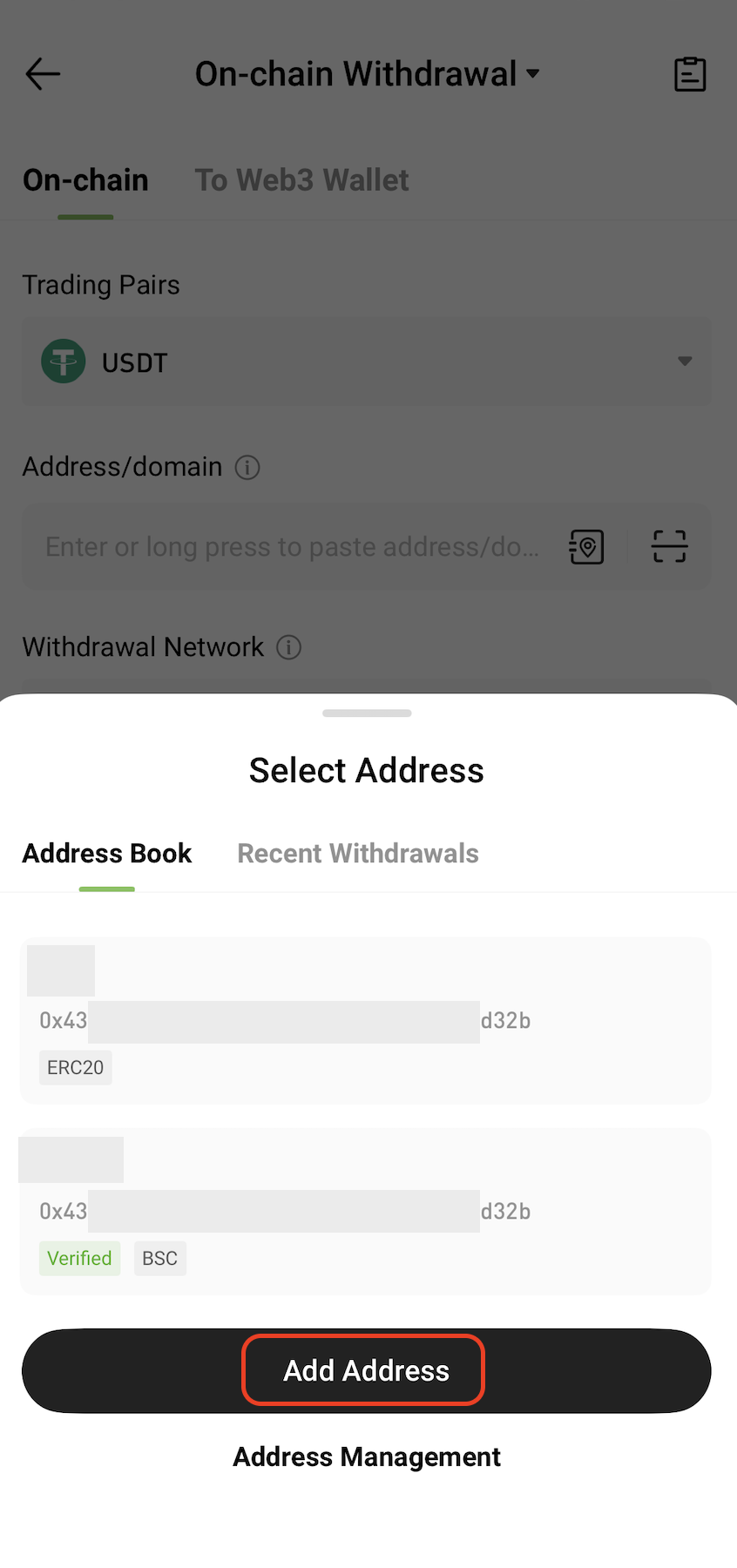
3. In the Select Address pop-up window, click Add Address


4. On the Add Address window, fill in the following information:
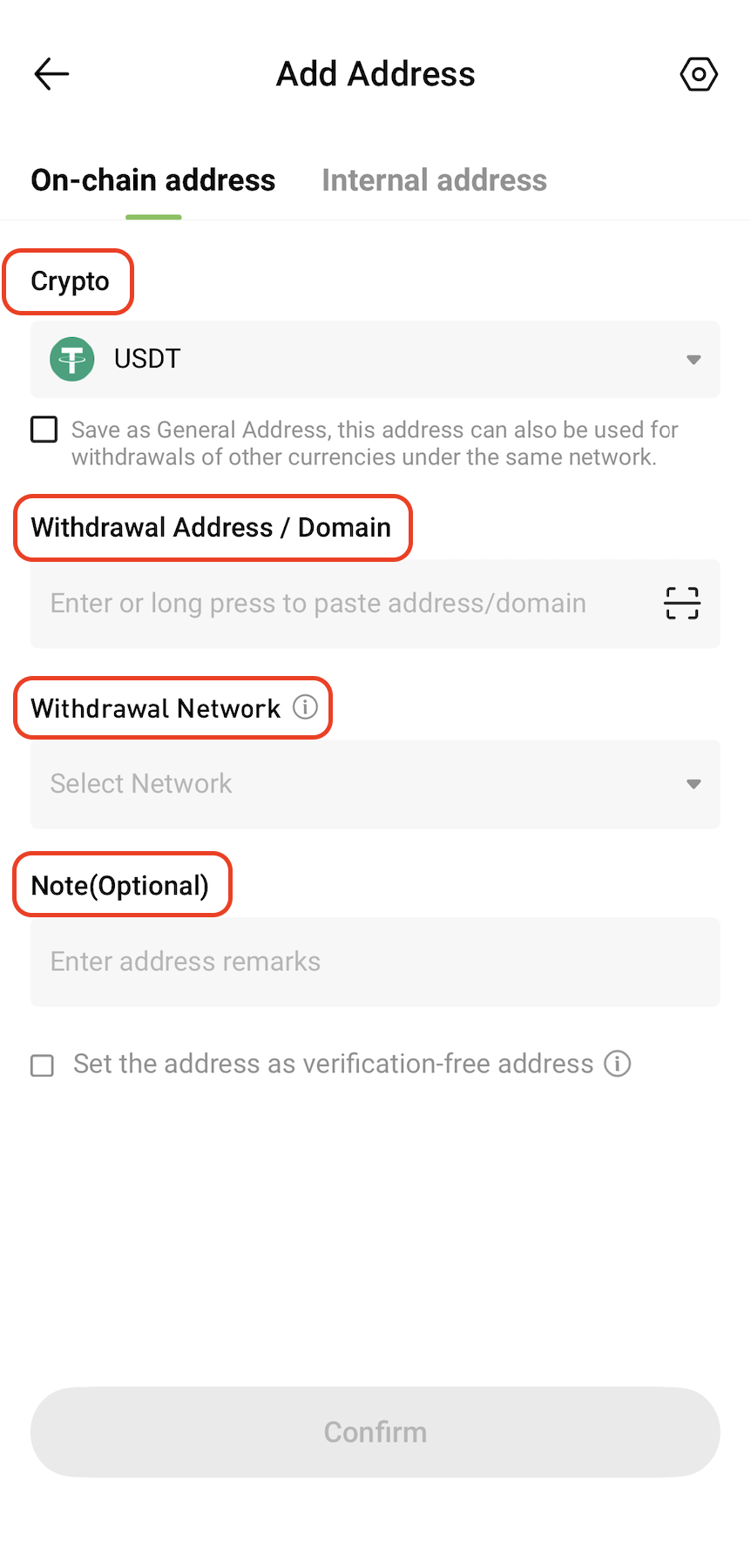
  

  • Crypto / Asset
  • Address or Domain
  • Network
  • Address Label (Optional)


Option Notes:

  • Universal Address: The address is saved by network and can be reused for withdrawals of supported coins on the same network. For details, see What Is a Universal Address?
  • Set as Verification-Free Address: Withdrawals to this address may require fewer secondary verification steps (subject to on-page prompts).


5. Complete the required security verification as prompted (e.g., SMS, Email, or Google Authenticator)
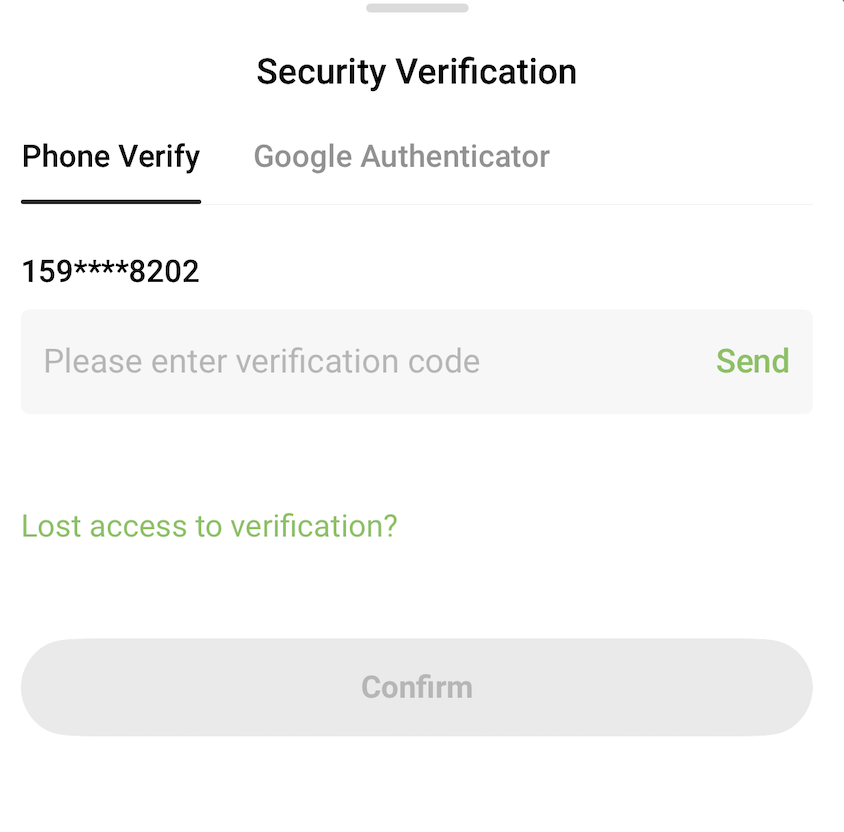


6. After submission, the new address will be saved to your Address Book. You can view and manage it on the Manage Withdrawal Addresses page.


How to Manage Withdrawal Addresses

   
1. In the Select Address pop-up (Step 3 above), tap Address Management to enter the Withdrawal Address Management page
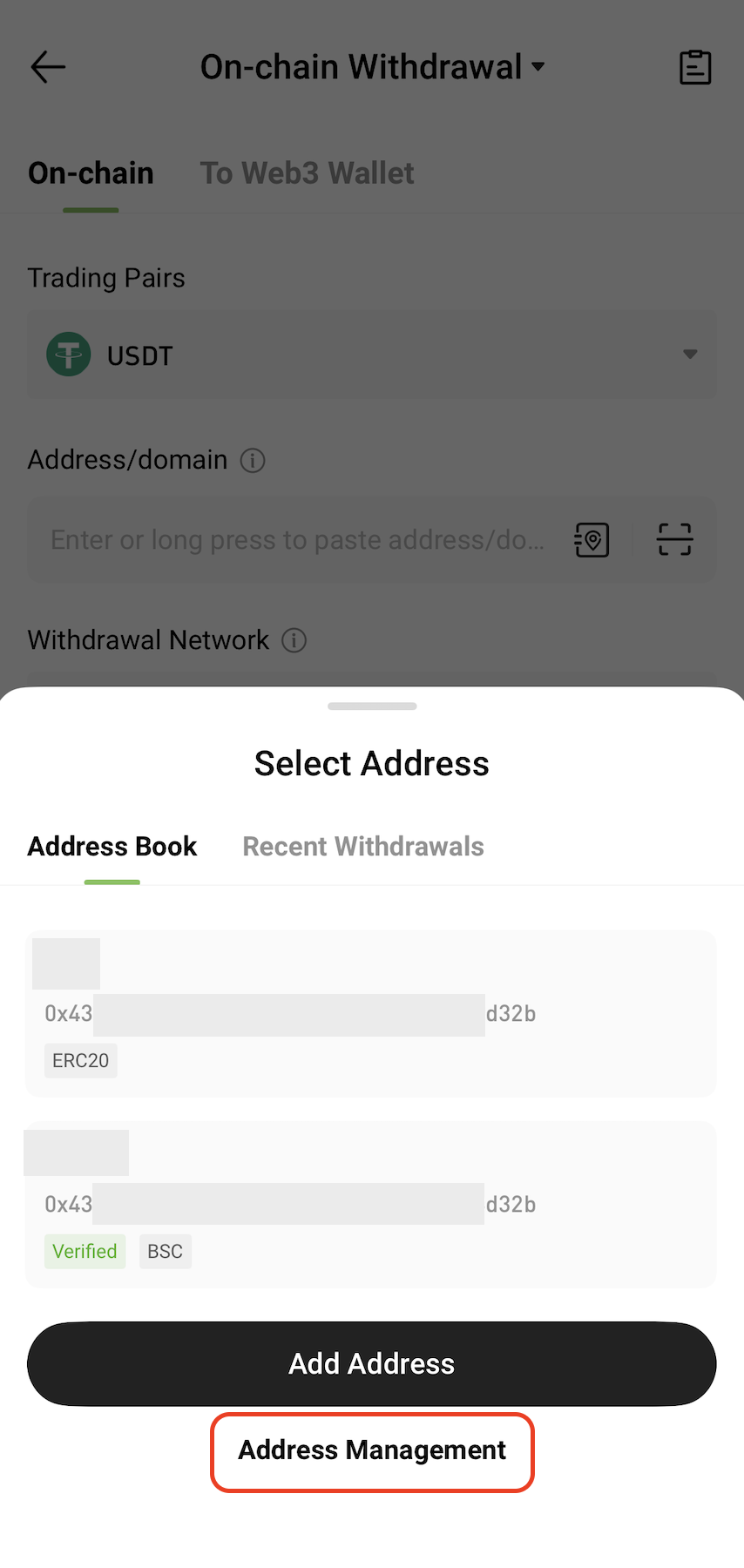


2. On the Withdrawal Address Management page, you can:
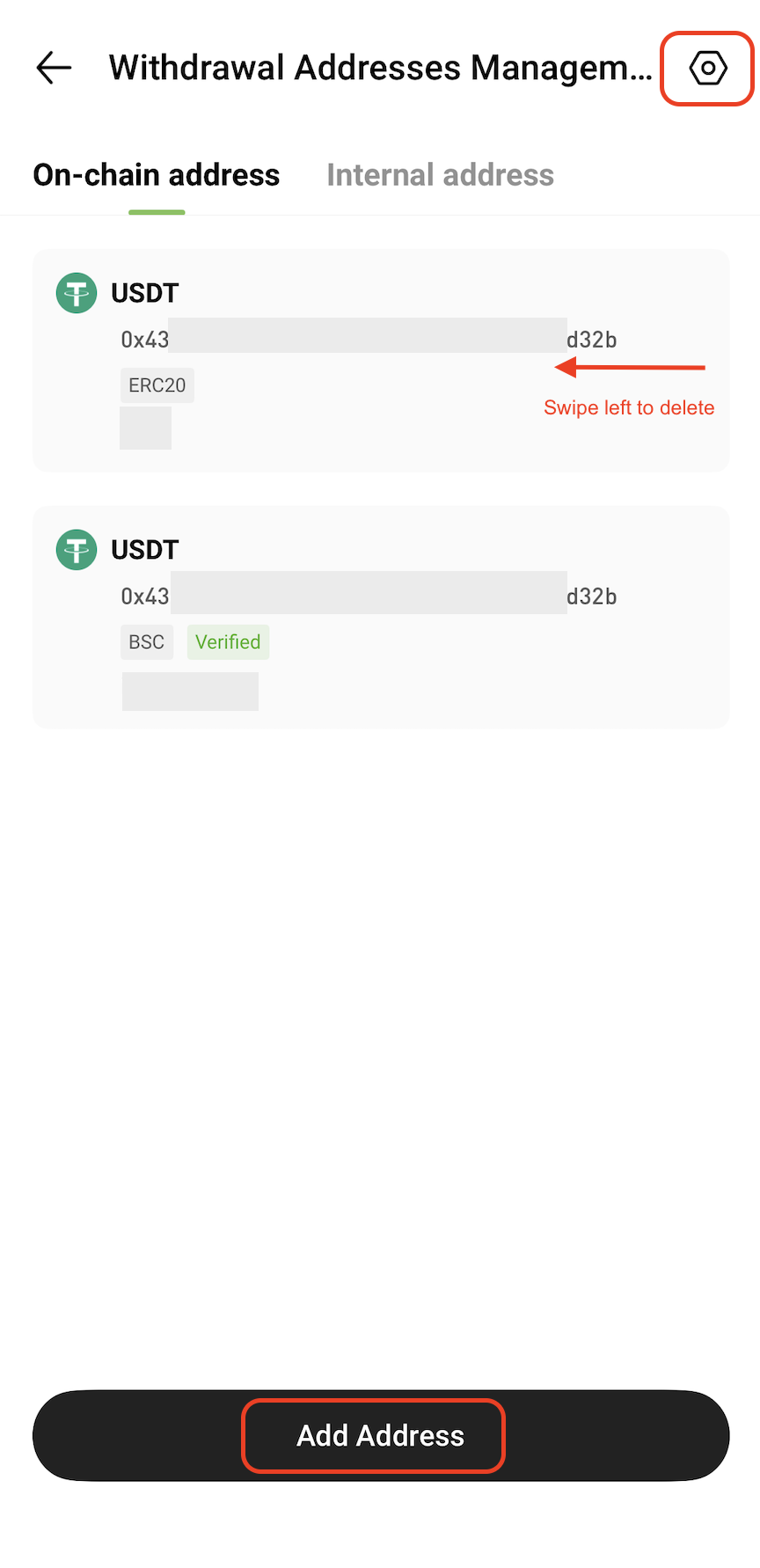
  

  • View saved withdrawal addresses
  • Delete addresses you no longer use (swipe left on the address entry and tap the trash icon)
  • Add a new address
  • Tap the Settings icon in the top-right corner to access Address Settings


3. On the Address Settings page, you can configure the following security settings:
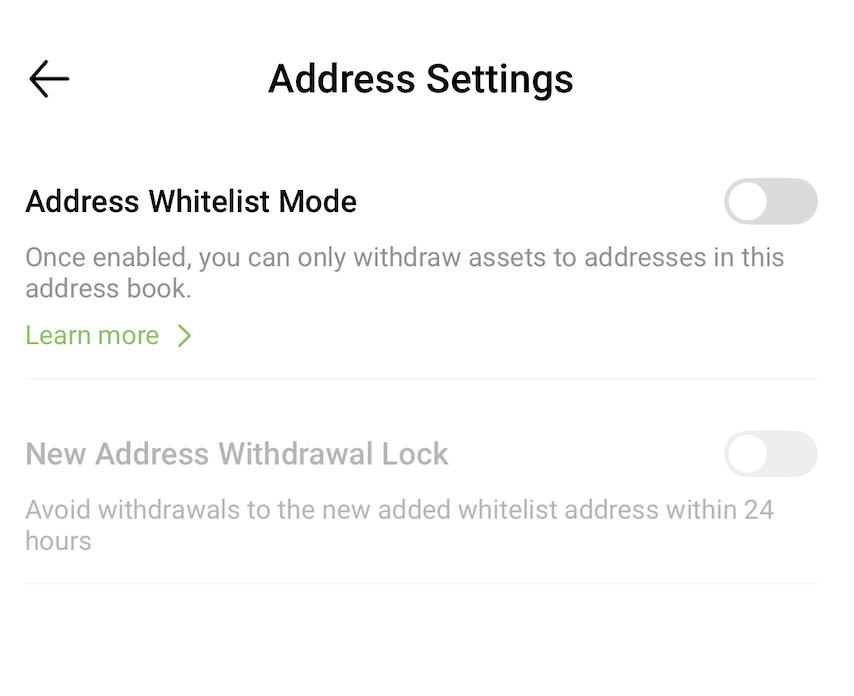
  

  • Withdrawal Address Whitelist Mode: When enabled, withdrawals can only be made to addresses saved in the Address Book. For details, see How to Use the Withdrawal Whitelist.
  • New Address Withdrawal Lock: When enabled, newly added addresses will be subject to a 24-hour withdrawal restriction to reduce the risk of abnormal withdrawals (subject to on-page prompts)


Tips


  • Ensure the withdrawal network matches the receiving platform’s network.
  • Blockchain transfers are irreversible. Double-check the address, network, and other details before submitting.
  • Enabling Withdrawal Address Whitelist is recommended to further enhance account security.
Quick Start Guide
Cryptocurrency Basics
Beginner’s Guide
App Guide
Start Trading
VIP Program
Rewards Center
Account Security & KYC
Asset Security
Security Settings
KYC Verification
Deposit & Withdrawal
Deposit
Withdrawal
P2P
P2P Trading Guide
P2P Merchant Management
P2P Rules & Agreements
Friend Referral
Spot Trading
Spot Trading
Pre-market trading
Derivatives
Advanced Trading
Grid Trading
Trend Trading
Fundamentals of Technical Analysis (Candlesticks / MACD / RSI)
Prediction Market
Futures Grid
Futures Trading
Getting Started
Contract Type
Trading Mechanics
Risk Management
FAQ
Copy Trading
Getting Started
Follower Guide
Lead Trader Guide
Terms of Service
Web3 Wallet
Getting Started
Swap
Hotcoin Card
Hotcoin Earn
Alpha
Startup
Platform Support
Agreements & Rules